
There’s a very specific kind of dread that comes from turning your camera on for a work call and hearing your laptop fan spin up at exactly that moment, as if it’s personally decided to embarrass you in front of everyone. One second your laptop’s dead silent. The next, you open a game, start a video export, or join a call, and it sounds like a small aircraft is getting ready for take-off on your desk.

That noise isn’t random, and it isn’t your laptop being dramatic. It’s the cooling system fighting one of the oldest problems in computing: powerful processors generate real heat, and laptops have remarkably little room to get rid of it. The faster your computer works, the more electrical power it draws, and a lot of that power ends up as heat. Once things get too warm, your laptop really only has three options left: spin the fans harder, slow itself down, or switch off entirely. Once you understand that trade-off, it becomes a lot easier to tell whether a loud fan is completely normal, or actually worth worrying about.
What Actually Makes a Laptop Fan Suddenly Get Loud?
A fan gets loud because the cooling system urgently needs to shift more air through the laptop. Heavy workloads, blocked airflow, aggressive power settings, a build-up of dust, or something chewing through resources in the background can all set it off.
It’s really a simple chain reaction: more processing leads to more electrical power, more power leads to more heat, and more heat leads to faster fans.
Picture your laptop sitting almost idle while you read a document — the processor’s barely working, so it stays cool and quiet. Now picture firing up a demanding game, exporting a 4K video, working on a huge Photoshop file, joining a video call with a blurred background running, or just opening forty browser tabs because you never close anything. The processor suddenly has a serious amount of work to do, and the cooling system reacts within seconds.
Why Do Faster Chips Generate So Much Heat?
Modern processors are built from billions of transistors — tiny electronic switches, essentially — and a processor does its job by flicking huge numbers of these on and off billions of times a second. Those switches are remarkably efficient, but not perfect: every time one flips, a little bit of electrical energy gets lost as heat.
When the workload ramps up, processors will temporarily raise their own speed and power draw to get the job done faster — Intel calls this Turbo Boost, AMD has its own version of the same idea. But that extra speed isn’t free. More speed means more power, and more power means more heat. It’s the fundamental trade-off of laptop design: fast, cool, and quiet, pick two, and try doing it inside a case that’s only a few millimetres thick.
How Does a Laptop Actually Get Rid of the Heat?
The fan gets all the attention, but it’s only the last link in a chain. Thermal paste sits directly on the chip and carries heat away from it; copper heat pipes move that heat further from the processor; metal heatsink fins spread it out across a much larger surface area; the fan pushes cold air through those fins; and exhaust vents push the resulting hot air back out of the case. Block airflow at any single point in that chain, and the whole system struggles, which is usually when things start overheating.
Why Are Laptop Fans So Much Louder Than Desktop Ones?
A desktop PC has a luxury laptops simply don’t: space. A desktop case can fit several large fans, a hefty heatsink, and a genuinely large volume of moving air. Laptop engineers are often working with around 20 millimetres of total thickness to play with.
Because a laptop fan is physically tiny, it has to spin much faster to shift a comparable amount of air — and that high-speed spin is exactly what produces the familiar high-pitched rush that makes a gaming laptop sound like a miniature jet engine under load.
What Is “Thermal Throttling”?
Eventually, spinning the fans faster stops being enough on its own, and that’s when thermal throttling takes over. It means the processor deliberately slows itself down to keep its temperature within safe limits — a protective feature, not a fault. It’s your laptop looking after itself, not malfunctioning.
The sequence runs roughly like this: heavy workload, rising temperature, fans hit maximum speed, and then the processor quietly throttles its own performance to cool back down. You lose a bit of speed, but the laptop survives. If even that isn’t enough, it’ll shut itself down entirely rather than risk real damage.
Is a Loud Fan Actually Normal?
Often, yes, completely. A fan roaring away during a demanding task is usually just evidence that the cooling system is doing precisely what it was built to do.
Usually nothing to worry about: fan noise during gaming, video editing, rendering, big software updates, or AI-heavy workloads — especially if it settles back down within a few minutes of finishing the task.
Worth looking into: the fan running at full speed while the laptop is sitting completely idle, a noticeable jump in loudness compared with how it used to sound, constant revving up and down for no obvious reason, or any grinding, clicking or rattling noise, which usually points to a worn bearing or a damaged blade rather than anything to do with heat.
How to Stop It Sounding Like a Jet Engine
Don’t assume the fan itself is broken straight away — start with the software side first.
Check what’s actually using your CPU. On Windows, press Ctrl + Shift + Esc to open Task Manager and sort by CPU usage; on a Mac, open Activity Monitor and check the CPU tab. Quite often it’s a browser tab struggling with a heavy webpage, a Windows update quietly running in the background, or your antivirus doing a full scan. Close the culprit, and the fan usually calms down within a minute or two.
Give it room to actually breathe. Using a laptop on a bed, a blanket, a sofa cushion, or thick carpet blocks the vents underneath and traps hot air right where it needs to escape. A hard, flat desk works far better, and a laptop stand that lifts the back slightly can make a genuinely noticeable difference. A cooling pad with its own fans is worth considering if you’re regularly gaming for long stretches.

Check your power mode. A laptop set to “Best Performance” or “High Performance” will run hotter even for light tasks. If you’re just browsing or writing, switching to “Balanced” or “Power Saver” tends to calm the fans down almost immediately.
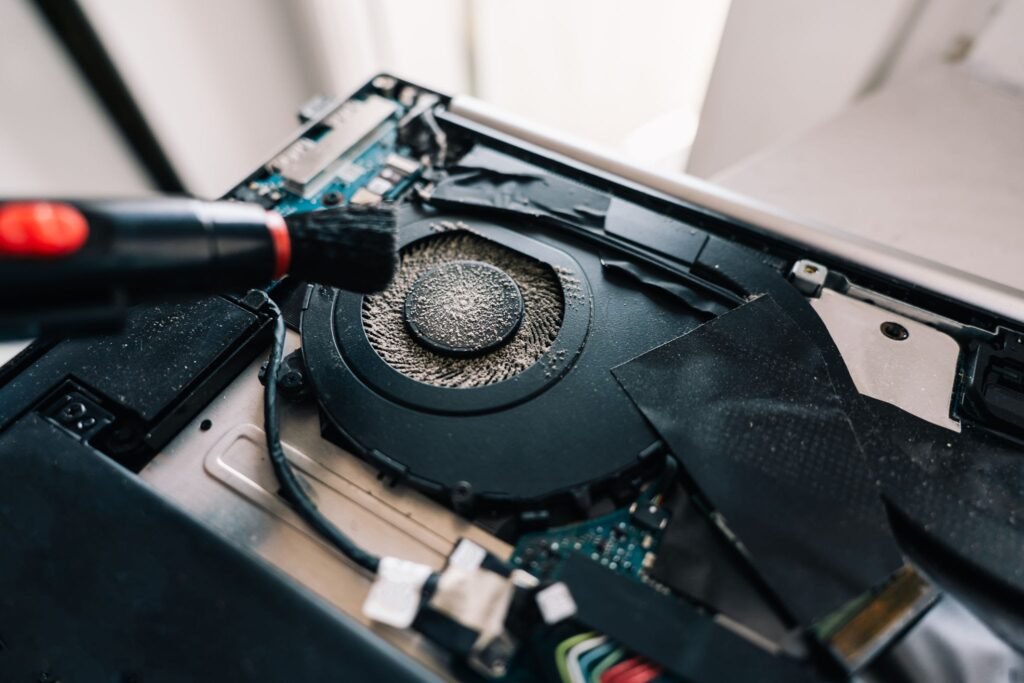
Clean the dust out. Dust builds up inside the fins and fans over time, chokes the airflow, and forces the fan to spin much harder just to shift the same amount of air. If your laptop is a few years old and has never been opened up, this is very likely your main culprit. If you’re comfortable doing it yourself, open the back panel and use compressed air to clear the dust out — hold each fan blade still with a finger while you spray, since letting the blades spin freely from the air pressure can damage the bearings. If that’s not something you fancy doing yourself, a repair shop can usually do it quickly and cheaply.
Why Do Older Laptops Get Louder Over Time?
Cooling performance fades gradually rather than all at once. A laptop that was whisper-quiet when new will, after a few years, have dust gradually blocking the vents, thermal paste drying out and losing its ability to transfer heat properly, and background software quietly piling up. The processor is still trying to deliver exactly the same performance it always did, but the clogged, degraded cooling system now needs far higher fan speeds just to shift the same amount of heat. A proper clean and a fresh application of thermal paste will usually bring an old laptop most of the way back to how it sounded on day one.
The Bottom Line
Your laptop fan isn’t trying to annoy you — it’s the noisy, final stage of a genuinely clever thermal-management system doing exactly its job. Hearing it roar during gaming or rendering is completely normal. Hearing it roar while the laptop’s just sitting there doing nothing is the bit worth investigating: check Task Manager, check the airflow, and check for dust.
Treat the noise as information rather than an annoyance. Your laptop is telling you, quite literally, how hard it’s working to stay within safe limits — and once you know why, that sudden blast of air stops being mysterious and starts being genuinely easy to diagnose.