
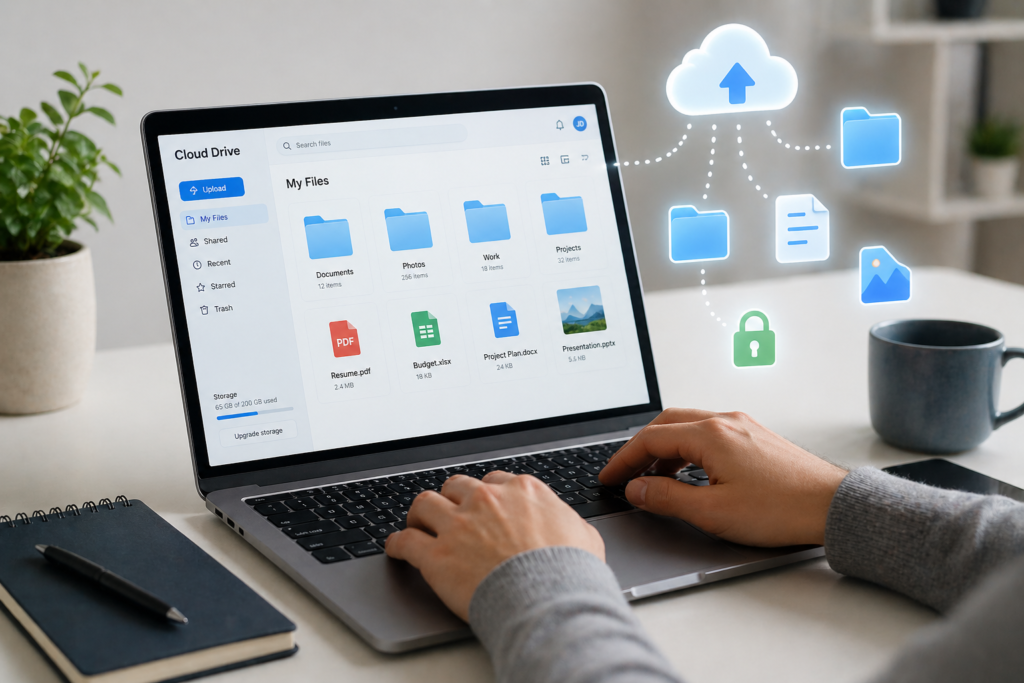
Cloud storage makes it easy to access your files anywhere—but one mistake can lead to permanent data loss or security risks. Whether you’re storing photos, work files, or financial documents, knowing how to use cloud storage safely is essential.
This guide shows you exactly how to protect your data, avoid common mistakes, and use cloud platforms with confidence.
What Is Cloud Storage?
Cloud storage is a service that allows you to store files online instead of on your device. Your data is saved on remote servers and can be accessed via the internet.
Popular examples include:
- Google Drive
- Dropbox
- Microsoft OneDrive
Why People Use Cloud Storage
- Access files from any device
- Save storage space on phones and laptops
- Share files easily with others
- Protect data from device damage or loss
However, without proper setup, cloud storage can expose your data to hacking, accidental deletion, or syncing errors.
Why Cloud Storage Safety Matters
Using cloud storage without precautions can lead to:
- Data breaches: Weak passwords or phishing attacks
- Accidental deletion: Files removed without backup
- Sync errors: Overwriting important files
- Account lockouts: Losing access to your account
For example, if you store important documents in Google Drive without backups and accidentally delete them, recovery may only be possible within a limited time.
How to Use Cloud Storage Safely (Step-by-Step)
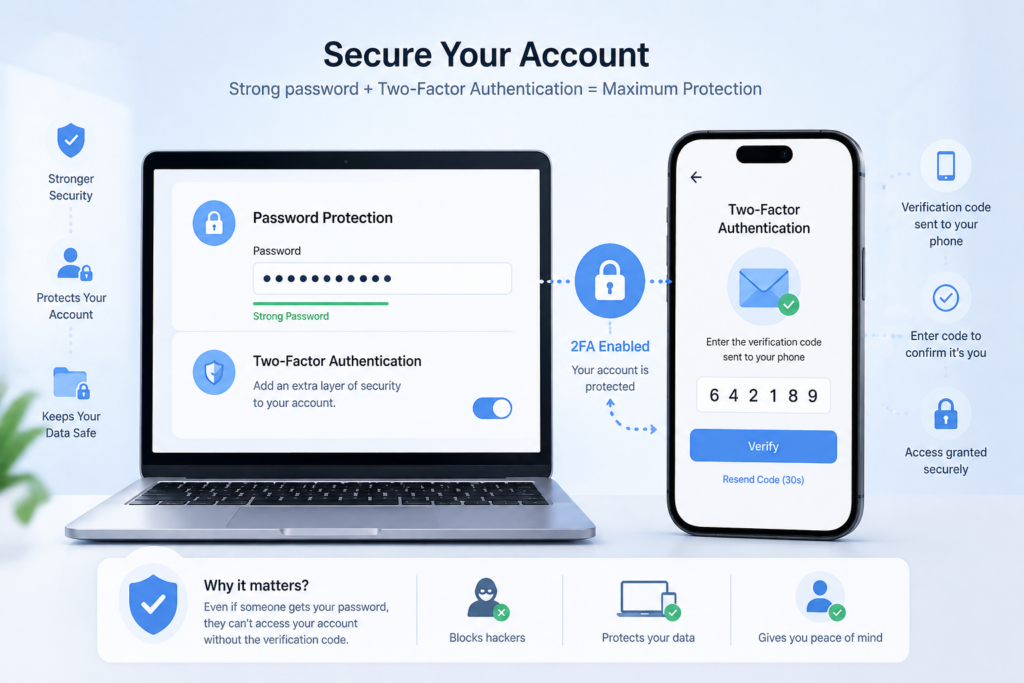
1. Use Strong Passwords and Two-Factor Authentication
A strong password is your first line of defence.
Best practices:
- Use at least 12–16 characters
- Combine letters, numbers, and symbols
- Avoid reusing passwords
Enable two-factor authentication (2FA) for an extra layer of protection. This requires a code sent to your phone or app.
Example:
In Dropbox, enabling 2FA reduces the risk of unauthorised access by over 90%.
2. Always Keep a Backup (3-2-1 Rule)
The safest approach is to never rely on one storage location.
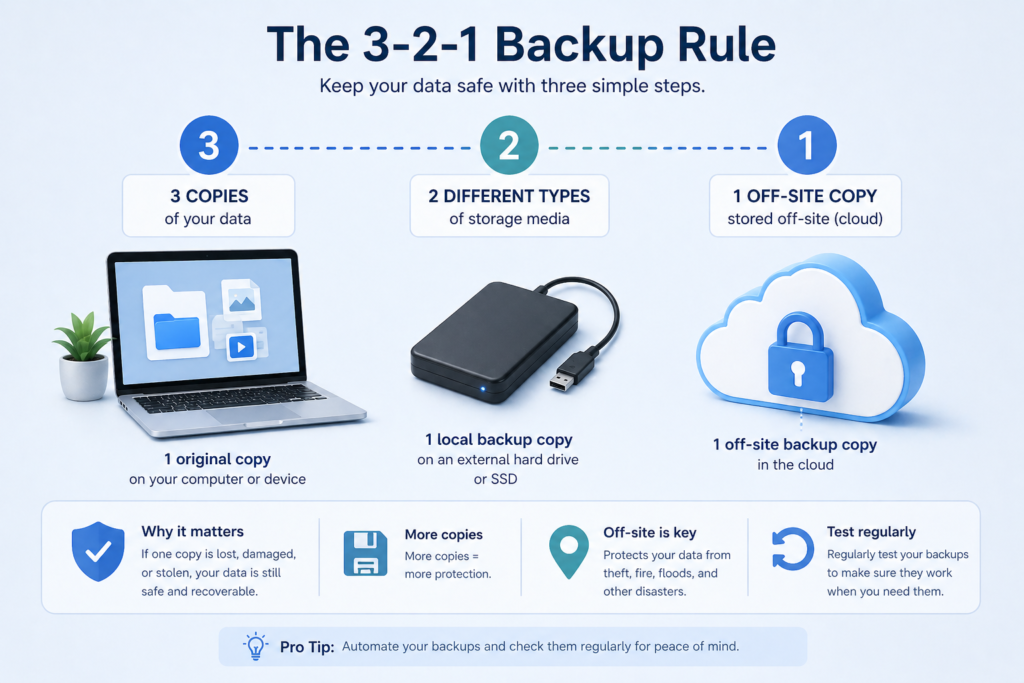
Use the 3-2-1 rule:
- 3 copies of your data
- 2 different storage types
- 1 copy stored off-site (cloud)
Simple setup:
- Original file on your laptop
- Backup on an external drive ($50–$150)
- Cloud copy on Microsoft OneDrive
This ensures your data survives even if one system fails.
3. Encrypt Sensitive Files
Encryption protects your files even if someone gains access.
When to use encryption:
- Financial documents
- Personal identification
- Business files
Tools to use:
- VeraCrypt – strong file encryption
- 7-Zip – password-protected archives
Example:
Before uploading a passport scan, encrypt it using VeraCrypt. Even if the cloud account is compromised, the file remains unreadable.
4. Manage File Sharing Carefully
Cloud storage makes sharing easy—but also risky.
Avoid these mistakes:
- Sharing files publicly
- Forgetting to revoke access
- Using weak sharing links
Best practices:
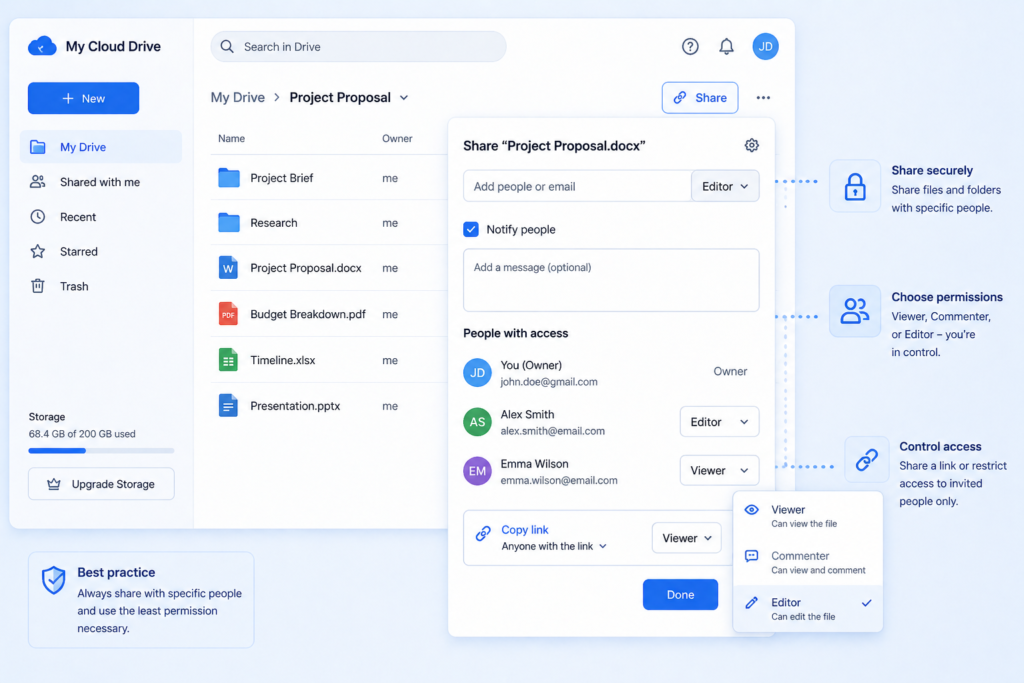
- Share with specific email addresses
- Set expiration dates on links
- Use “view-only” permissions
Example:
In Google Drive, always choose “Restricted access” instead of “Anyone with the link”.
5. Check Sync Settings Regularly
Automatic syncing can overwrite files without warning.
What to check:
- Which folders are syncing
- File version history
- Conflict copies
Scenario:
You edit a document offline, then reconnect. If syncing is misconfigured, your newer version could be replaced.
Platforms like Dropbox offer version history to restore previous versions.
6. Avoid Public Wi-Fi for Sensitive Uploads
Public networks are often unsecured.
Risks include:
- Data interception
- Account hijacking
- Malware injection
Safer alternatives:
- Use mobile data
- Use a VPN
Example:
Uploading financial files over café Wi-Fi can expose your login credentials if encryption isn’t enforced.
7. Monitor Account Activity
Most cloud services allow you to check login activity.
Look for:
- Unknown devices
- Suspicious locations
- Failed login attempts
Example:
Microsoft OneDrive shows login history so you can detect unusual activity early.
Real Tools to Use (Global Recommendations)
🌍 Global (Works Everywhere)
- Google Drive – easy sharing, strong ecosystem
- Dropbox – reliable syncing, version control
- Microsoft OneDrive – integrates with Office tools
🇺🇸 United States
- iCloud – seamless Apple device integration
- Backblaze – automatic full-device backup
🇬🇧 UK / Europe
- pCloud – lifetime plans, strong encryption
- Tresorit – end-to-end encryption focus
⚙️ Advanced Users
- Synology NAS – private cloud control
- Nextcloud – full data ownership
Common Cloud Storage Mistakes to Avoid
- Relying on one cloud service only
- Not enabling 2FA
- Uploading unencrypted sensitive data
- Ignoring file version history
- Leaving shared links active indefinitely
Avoiding these mistakes can reduce your risk of data loss by 70–90%.
FAQ
Is cloud storage safe for personal files?
Yes, cloud storage is safe if you use strong passwords, enable 2FA, and encrypt sensitive files. Without these steps, your data can be vulnerable.
What is the safest cloud storage service?
Services like Tresorit and pCloud offer strong encryption, making them among the safest options.
Can files be permanently lost in the cloud?
Yes. If files are deleted and not backed up, they may be unrecoverable after a certain period (e.g. 30 days).
How often should I back up my cloud data?
At least once a week for personal use, or daily for important work files.
Is free cloud storage secure?
Free plans are generally secure but may have fewer security features. Always add your own protection like encryption and backups.
Conclusion
Using cloud storage safely isn’t complicated—but it requires the right habits. By combining strong passwords, backups, encryption, and smart sharing, you can protect your data from most risks.
Start by securing one platform today, then build a simple system around it. Small steps now can prevent costly data loss later.