
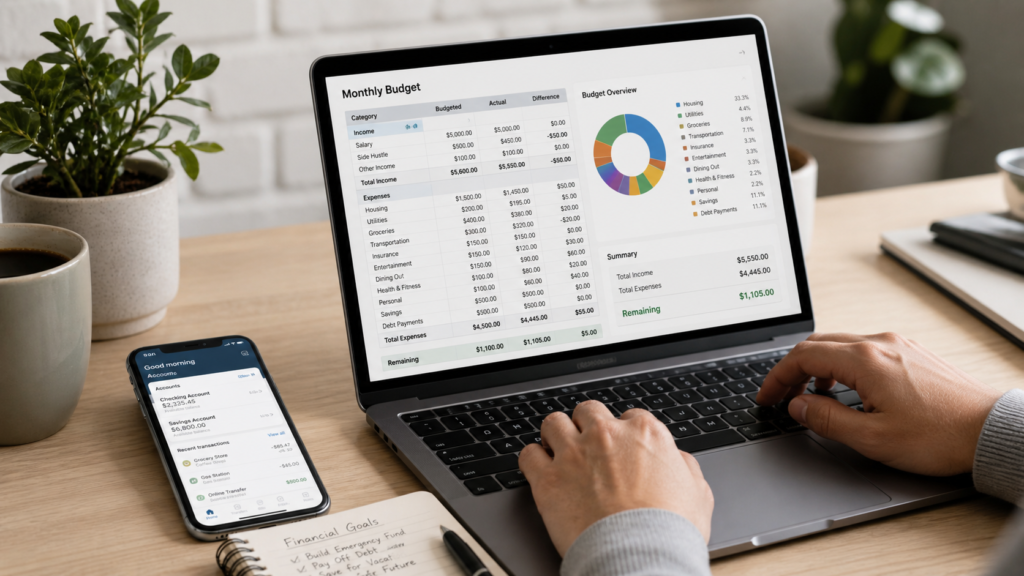
A spreadsheet can turn messy finances into a clear system. Instead of guessing where your money went, you can see your income, bills, spending, savings, and debt in one place.
You do not need to be an Excel expert. A simple spreadsheet budgeting system can help you track spending, plan ahead, avoid shortfalls, and make smarter money decisions every month.
The best part is control. Unlike many budgeting apps, a spreadsheet lets you design your own money dashboard around your real life, not someone else’s categories.
What Is Spreadsheet Budgeting?
Spreadsheet budgeting is the process of using a spreadsheet, such as Google Sheets, Microsoft Excel, Apple Numbers, or Tiller, to track income, expenses, savings, debt, and financial goals.
A good money spreadsheet usually includes:
- Monthly income
- Fixed bills
- Variable spending
- Savings goals
- Debt payments
- Net worth
- Monthly review notes
Microsoft says its personal monthly budget template helps users track income and expenses, compare projected and actual costs, and automatically calculate the difference. (Microsoft Support)
Why Use Spreadsheets to Manage Money?
Spreadsheets are powerful because they make your money visible.
A budgeting app may show you spending categories, but a spreadsheet lets you build a system that matches your exact needs. You can track irregular income, split bills, plan annual costs, compare months, and create custom charts.
For example, if you earn $3,200 per month, spend $2,500, save $400, and pay $200 towards debt, your spreadsheet can show that you have $100 left before the month ends.
That one view can prevent overspending.
How to Set Up a Money Spreadsheet
Start simple. Your first spreadsheet does not need complex formulas or colourful dashboards.
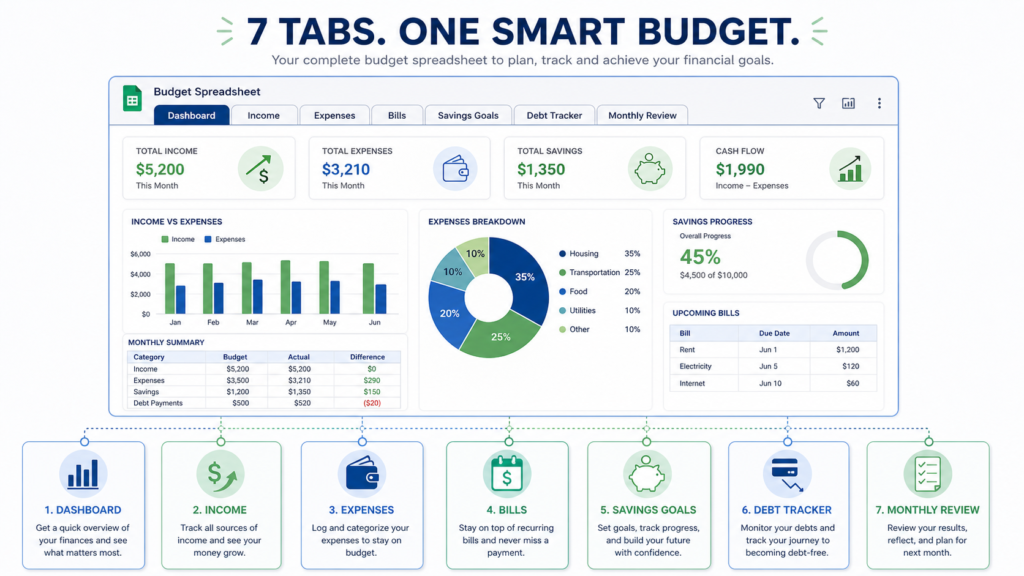
Create these tabs:
- Dashboard
- Income
- Expenses
- Bills
- Savings Goals
- Debt Tracker
- Monthly Review
The Dashboard should summarise the important numbers. The other tabs hold the details.
A beginner-friendly setup takes 30–60 minutes. After that, you only need 15–20 minutes per week to update it.
1. Create a Monthly Dashboard
Your dashboard is the control centre of your money spreadsheet.
Include these numbers:
- Total income
- Total spending
- Total savings
- Debt payments
- Money left
- Savings rate
- Top 3 spending categories
Example dashboard:
| Category | Monthly Amount |
|---|---|
| Income | $3,200 |
| Bills | $1,450 |
| Variable spending | $900 |
| Savings | $400 |
| Debt payments | $200 |
| Money left | $250 |
This gives you a quick monthly overview without checking every transaction.
2. Track Income Clearly
Create an Income tab with columns for:
- Date
- Source
- Expected amount
- Actual amount
- Notes
Example:
| Date | Source | Expected | Actual | Notes |
|---|---|---|---|---|
| 2026-05-01 | Salary | $3,000 | $3,000 | Main income |
| 2026-05-10 | Freelance | $250 | $300 | Extra project |
This is especially useful if your income changes each month. If your expected income is $3,200 but your actual income is $3,000, your spreadsheet shows the $200 gap early.
3. Build an Expense Tracker
Your expense tracker is where you record daily spending.
Use these columns:
- Date
- Category
- Description
- Payment method
- Amount
- Need or want
- Notes
Example categories:
- Housing
- Groceries
- Transport
- Utilities
- Insurance
- Subscriptions
- Eating out
- Shopping
- Health
- Entertainment
A practical rule: update your spending 2–3 times per week. Waiting until the end of the month makes it harder to remember what happened.
MoneyHelper says accurate numbers from bank statements, bills, payslips, and banking apps help create a clearer budget picture. (MaPS)
4. Separate Fixed Bills From Variable Spending
Fixed bills are predictable. Variable spending changes.
Create a Bills tab for recurring costs such as:
- Rent or mortgage
- Phone bill
- Internet
- Insurance
- Subscriptions
- Loan payments
- Utilities
Example:
| Bill | Amount | Due Date | Paid? |
|---|---|---|---|
| Rent | $1,000 | 1st | Yes |
| Phone | $45 | 8th | Yes |
| Internet | $60 | 15th | No |
| Streaming | $15 | 20th | No |
Then track flexible spending separately.
This prevents a common mistake: thinking you have money available when it is already needed for future bills.
5. Use Simple Spreadsheet Formulas
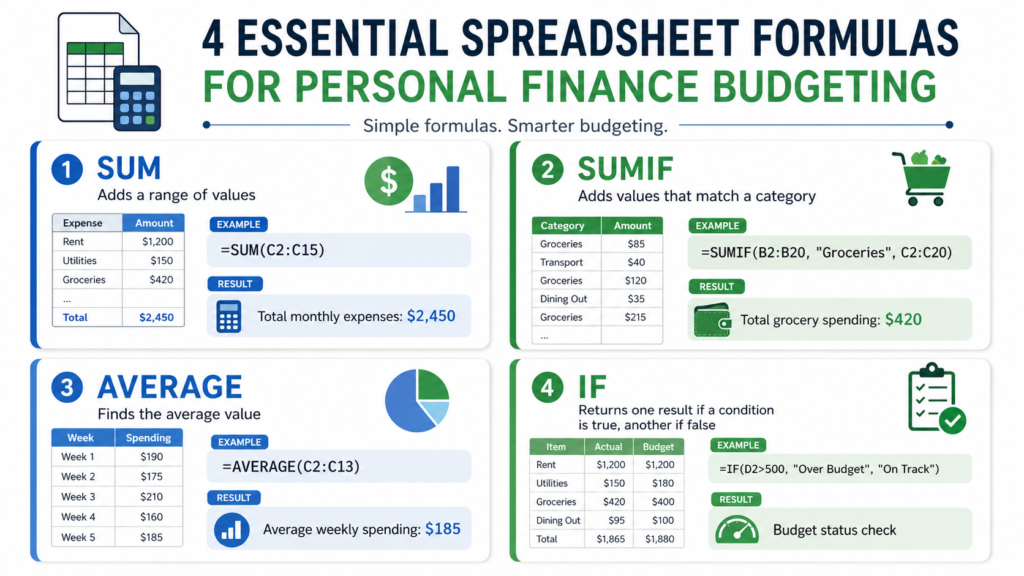
You only need a few formulas to manage money well.
Useful beginner formulas:
- SUM — adds totals
- AVERAGE — finds monthly averages
- IF — shows simple conditions
- SUMIF — adds spending by category
- COUNTIF — counts repeated items
Example:
If your grocery transactions are in column B and amounts are in column C, a SUMIF formula can calculate total grocery spending for the month.
Simple scenario:
You budget $400 for groceries. Your spreadsheet shows $465 by the 25th. You still have 5–6 days left, so you decide to cook from existing food instead of doing another large shop.
6. Add a Savings Goals Tab
Savings goals become easier when you can see progress.
Create columns for:
- Goal name
- Target amount
- Current amount
- Monthly contribution
- Deadline
- Progress percentage
Example:
| Goal | Target | Current | Monthly Contribution | Progress |
|---|---|---|---|---|
| Emergency fund | $6,000 | $1,500 | $300 | 25% |
| Holiday | $1,200 | $400 | $100 | 33% |
| Laptop | $900 | $250 | $75 | 28% |
A realistic savings target is 5–15% of monthly income. If you earn $3,200, that means $160–$480 per month.
7. Track Debt Without Shame
A debt tracker is not there to make you feel bad. It is there to make the numbers clear.
Include:
- Debt name
- Balance
- Interest rate
- Minimum payment
- Extra payment
- Payoff target
- Notes
Example:
| Debt | Balance | Interest Rate | Minimum | Extra Payment |
|---|---|---|---|---|
| Credit card | $1,800 | 22% | $60 | $100 |
| Personal loan | $3,500 | 9% | $150 | $0 |
If you pay an extra $100 per month towards high-interest debt, your spreadsheet can show how quickly the balance starts falling.
8. Create a Monthly Review Tab
Your monthly review is where your spreadsheet becomes a decision-making tool.
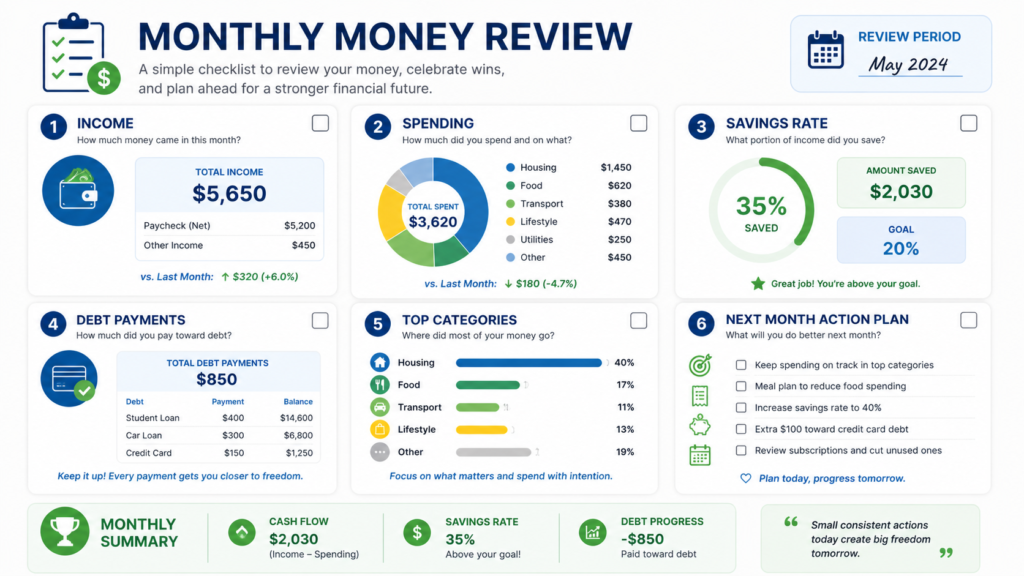
At the end of each month, answer:
- What was my income?
- What did I spend?
- Did I save enough?
- Which category went over budget?
- What can I adjust next month?
- What one habit helped most?
Example review:
“May income was $3,200. Spending was $2,750. Savings were $350, which is about 11% of income. Eating out was $180 over budget, so next month I will plan 3 easy dinners per week.”
This is simple, practical, and far more useful than just feeling guilty.
Best Spreadsheet Tools for Managing Money
Global
- Google Sheets — free, cloud-based, easy sharing
- Microsoft Excel — powerful templates and formulas
- Apple Numbers — simple option for Apple users
United States
- Tiller Money — automated Google Sheets and Excel tracking
- Quicken Simplifi — useful cash-flow and spending dashboard
- Monarch Money — strong household finance overview
United Kingdom / Europe
- MoneyHelper Budget Planner — free official budgeting tool
- Emma — spending categories and subscription tracking
- Snoop — bill insights and saving suggestions
Advanced users
- Tiller Money — automated spreadsheet transaction feeds
- Notion — finance dashboard with linked databases
- Airtable — flexible database-style money tracking
Tiller says it automatically tracks daily spending, balances, and budgets in Google Sheets and Excel, while Microsoft offers free budget templates for tracking expenses and personal financial goals. (Tiller)
Spreadsheet Budgeting Methods You Can Use
50/30/20 Budget
This method divides income into:
- 50% needs
- 30% wants
- 20% savings and debt repayment
Example for $3,000 monthly income:
- Needs: $1,500
- Wants: $900
- Savings/debt: $600
Zero-Based Budget
A zero-based budget gives every dollar a job.
If your income is $3,200, your spreadsheet assigns the full $3,200 to bills, spending, savings, debt, and goals until nothing is unplanned.
This does not mean spending everything. It means every dollar has a purpose.
Simple Category Budget
This is best for beginners.
You set limits for each category, such as:
- Groceries: $400
- Transport: $180
- Eating out: $150
- Subscriptions: $60
- Savings: $300
Then your spreadsheet compares planned spending with actual spending.
Common Spreadsheet Budgeting Mistakes
Avoid these mistakes:
- Creating too many categories
- Tracking every tiny detail but never reviewing
- Forgetting annual expenses
- Ignoring cash spending
- Not separating bills from daily spending
- Using complex formulas too early
- Giving up after one messy month
A strong spreadsheet is simple enough to keep using. If your file takes 2 hours to update, simplify it.
FAQ
Is Google Sheets or Excel better for budgeting?
Google Sheets is better if you want a free, cloud-based budget you can access anywhere. Excel is better if you want stronger templates, advanced formulas, and offline control. Both work well for spreadsheet budgeting.
What should I include in a budget spreadsheet?
Include income, fixed bills, variable spending, savings goals, debt payments, and a monthly review. Beginners should start with 5–7 tabs rather than building a complicated dashboard.
How often should I update my money spreadsheet?
Update your spreadsheet 2–3 times per week and review it once per month. This keeps the numbers accurate without making budgeting feel like a daily chore.
Can spreadsheets help me save money?
Yes. Spreadsheets help you see waste, spot overspending, plan bills, and track savings progress. Even finding $100–$300 per month in unused subscriptions, food spending, or impulse purchases can make a big difference.
Do I need formulas to use a budget spreadsheet?
No. You can start with manual tracking and simple totals. Once comfortable, add formulas such as SUM, SUMIF, AVERAGE, and IF to automate calculations.
Conclusion
Using spreadsheets to manage money gives you clarity, control, and flexibility. You can track income, bills, spending, savings, debt, and goals in one simple system.
Start with a basic dashboard, record income and expenses, separate bills from flexible spending, and review your numbers once a month. You do not need a perfect spreadsheet. You need one you can keep using.
A good spreadsheet can help you find $100–$300 per month, build savings, reduce debt, and make better financial decisions with less stress.
CTA: Open Google Sheets or Excel today, create your first 5 tabs, and track your next 7 days of spending.