
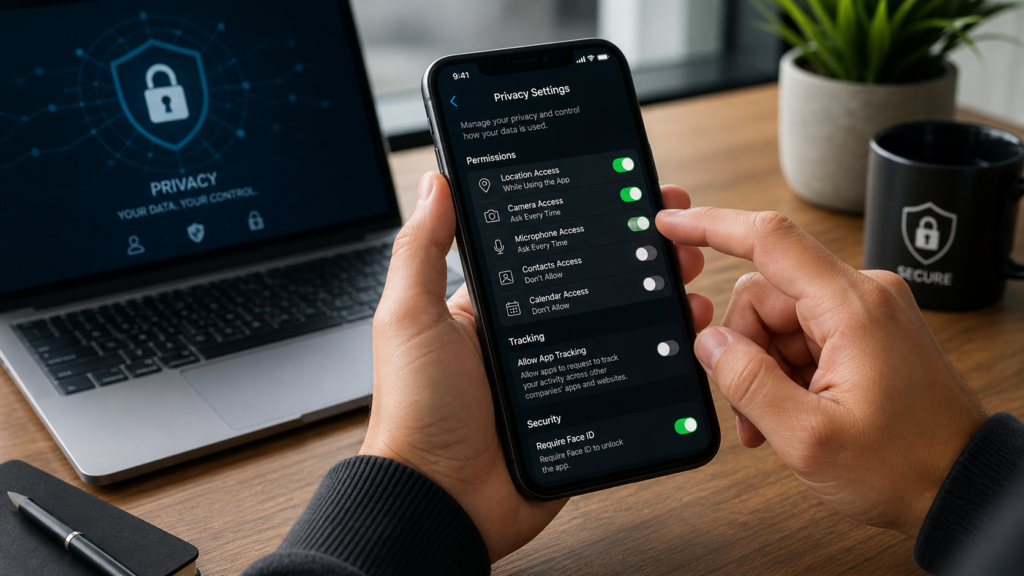
Your phone knows more about you than almost any other device. It can hold your messages, photos, location history, banking apps, emails, passwords, health data, contacts, and daily habits.
That is why mobile privacy matters. You do not need to become a cybersecurity expert, but you do need to adjust a few important settings. Many privacy risks come from weak passwords, unnecessary app permissions, location sharing, unsafe Wi-Fi, and apps collecting more data than they need.
The good news is that most privacy improvements take 5–20 minutes and cost $0. Start with the basics, then add stronger tools if you need them.
What Is Mobile Privacy?
Mobile privacy means controlling what personal information your phone collects, stores, shares, and exposes to apps, websites, advertisers, networks, and other people.
This includes:
- Location data
- Contacts
- Photos and videos
- Microphone and camera access
- App tracking
- Notifications
- Browsing activity
- Account logins
- Cloud backups
- Bluetooth and Wi-Fi connections
A private phone is not completely invisible. It is a phone where apps and services only get access to what they genuinely need.
Why Phone Privacy Matters
Phone privacy matters because your smartphone is connected to your identity, money, work, relationships, and daily routine.
If your phone is poorly protected, someone could access private messages, reset passwords, view banking apps, track your location, or steal personal data.
The UK National Cyber Security Centre recommends protecting devices with a 6-digit PIN or strong password, and says fingerprint or face recognition can be useful too. (National Cyber Security Centre)
A simple example: if your phone has no strong lock screen and you lose it in a café, someone may be able to open your email, approve password resets, view photos, and access payment apps.
1. Use a Strong Lock Screen
Your lock screen is your first privacy barrier.
Use:
- A 6-digit PIN or longer
- A strong alphanumeric passcode if available
- Face ID, Touch ID, or fingerprint unlock
- Automatic screen lock after 30 seconds to 2 minutes
Avoid:
- 123456
- 000000
- Your birthday
- Your house number
- Simple patterns
- Reused PINs
On iPhone, go to Settings > Face ID & Passcode or Touch ID & Passcode.
On Android, go to Settings > Security & privacy > Device unlock or similar, depending on your phone.
This step takes about 2–5 minutes and protects everything else.
2. Review App Permissions
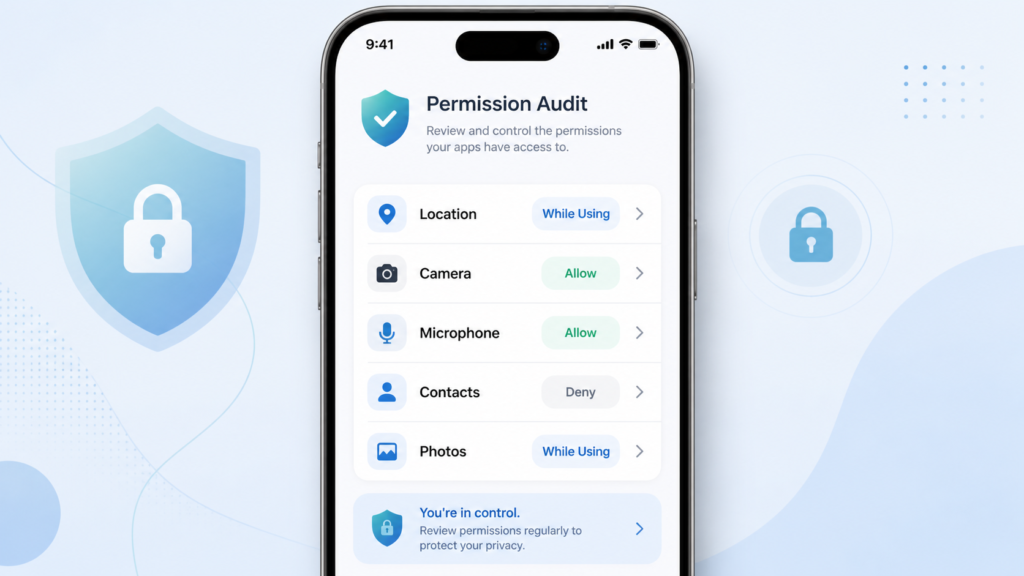
Apps often ask for access to your camera, microphone, contacts, photos, location, Bluetooth, and notifications. Some requests are necessary. Others are not.
For example, a maps app needs location access. A weather app may only need approximate location. A calculator app does not need access to your contacts.
Check permissions every 1–3 months.
On iPhone:
- Go to Settings > Privacy & Security
- Review Location Services, Camera, Microphone, Contacts, Photos, and Tracking
On Android:
- Go to Settings > Security & privacy > Privacy > Permission manager
- Review permissions by category
Google’s Android privacy controls allow users to manage app permissions and review access to sensitive information such as location, camera, and microphone. (Google)
3. Limit Location Tracking
Location data can reveal where you live, work, shop, exercise, and travel. You do not need to turn location off completely, but you should limit it.
Use these settings:
- Allow location only while using the app
- Turn off precise location when approximate location is enough
- Remove location access from apps you rarely use
- Disable location for games, shopping apps, and unnecessary social apps
- Check which apps accessed location recently
Example:
A ride-hailing or maps app can use precise location while you are using it. A shopping app or news app usually does not need constant location access.
On iPhone, Apple’s privacy settings let users control app access to location and other sensitive data through Privacy & Security settings. (Apple)
4. Turn Off Unnecessary App Tracking
App tracking allows companies to follow your activity across apps and websites for advertising, analytics, and profiling.
On iPhone:
- Go to Settings > Privacy & Security > Tracking
- Turn off Allow Apps to Request to Track
- Review apps that already requested tracking
On Android:
- Go to Settings > Privacy > Ads
- Reset or delete your advertising ID where available
- Turn off ad personalisation where possible
This does not stop all data collection, but it reduces cross-app tracking.
Practical scenario: if a shopping app tracks activity across other apps, it may help build a profile of your interests. Limiting tracking can reduce personalised ad targeting.
5. Keep Your Phone Updated
Software updates fix security weaknesses. Delaying updates for months can leave your phone exposed to known attacks.
Do this:
- Turn on automatic updates
- Install security updates quickly
- Update apps weekly or automatically
- Remove apps that no longer receive updates
The NCSC says devices such as smartphones, tablets, and PCs are more secure than before, but attackers continue to improve, so securing devices remains important. (National Cyber Security Centre)
A simple routine: check updates every Sunday. It usually takes 5–15 minutes, and many updates can run overnight.
6. Use a Password Manager and 2FA
Weak or reused passwords are a major privacy risk. If one account is breached, attackers may try the same password on your email, banking, shopping, and social media accounts.
Use a password manager to create unique passwords for every account. Then enable two-factor authentication, also called 2FA, for important accounts.
Prioritise:
- Banking
- Apple ID or Google Account
- Cloud storage
- Social media
- Password manager
- Work accounts
Good 2FA options include authenticator apps, passkeys, or hardware security keys. SMS codes are better than no 2FA, but authenticator apps and security keys are usually stronger.
A realistic setup target: secure your top 10 important accounts first, then update the rest over 2–4 weeks.
7. Hide Sensitive Notifications
Lock screen notifications can reveal private messages, codes, bank alerts, delivery addresses, and calendar details.
Change notification previews so they only show after unlocking.
On iPhone:
- Go to Settings > Notifications > Show Previews
- Choose When Unlocked or Never
On Android:
- Go to Settings > Notifications > Lock screen notifications
- Hide sensitive content
Example:
Instead of showing “Your bank verification code is 123456” on the lock screen, your phone can show only “New notification” until you unlock it.
This protects you from shoulder surfing in public places, at work, or on public transport.
8. Clean Up Old Apps
Old apps can collect data, send notifications, use storage, and keep permissions you forgot about.
Delete apps you have not used in 3–6 months, especially:
- Old games
- Shopping apps
- Trial apps
- Dating apps you no longer use
- Old fitness or health apps
- Unused photo editing apps
- Apps from unknown developers
On Android, Google Play Protect scans apps and can warn about harmful apps; it can also help protect against suspicious behaviour. (The Verge)
A quick privacy reset: remove 10 unused apps today, then review app permissions afterwards.
9. Be Careful With Public Wi-Fi
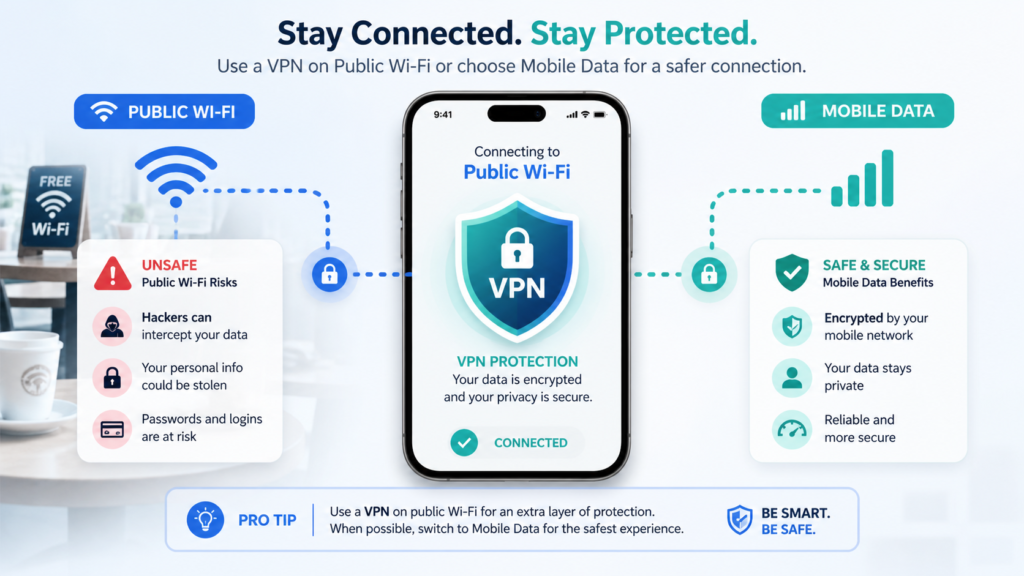
Public Wi-Fi in cafés, airports, hotels, and shopping centres can be convenient, but it is not always private.
Use safer habits:
- Avoid logging into banking apps on public Wi-Fi
- Do not enter sensitive details on unknown networks
- Use mobile data for private tasks
- Avoid networks with suspicious names
- Turn off auto-join for public networks
- Use a trusted VPN when needed
A VPN can help protect traffic on untrusted networks, but it does not make you anonymous or protect you from every scam. It is one layer, not magic protection.
10. Review Cloud Backup and Photo Privacy
Your phone may back up photos, messages, documents, and app data to cloud services such as iCloud, Google Drive, Google Photos, OneDrive, or Dropbox.
Cloud backup is useful, but you should know what is being backed up.
Check:
- Photo backup settings
- Shared albums
- Cloud storage access
- App backup permissions
- Deleted photo recovery folders
- Sensitive documents stored in cloud folders
Example:
If your phone automatically uploads every screenshot, it may include bank details, medical appointments, passwords, or private conversations. Delete sensitive screenshots and use secure notes or encrypted storage where appropriate.
Best Mobile Privacy Tools and Apps
Use tools carefully. More apps do not automatically mean more privacy. Start with built-in iPhone and Android settings, then add tools only where they solve a real problem.
Global
- Bitwarden — secure password manager with strong free plan
- Proton VPN — privacy-focused VPN for public Wi-Fi
- Signal — encrypted messaging with simple privacy controls
United States
- 1Password — polished password manager for families
- DuckDuckGo Privacy Browser — reduces web tracking
- Google Authenticator — simple two-factor authentication codes
United Kingdom / Europe
- Proton Pass — privacy-focused password manager
- Firefox Focus — simple private browsing app
- YubiKey — hardware security key for stronger logins
Advanced users
- Mullvad VPN — privacy-focused paid VPN
- Aegis Authenticator — advanced Android 2FA app
- NextDNS — custom DNS filtering and tracking control
Typical paid privacy tools cost around $1–$12 per month, depending on the product and plan. Start with free built-in settings first, then pay only for tools you will actually use.
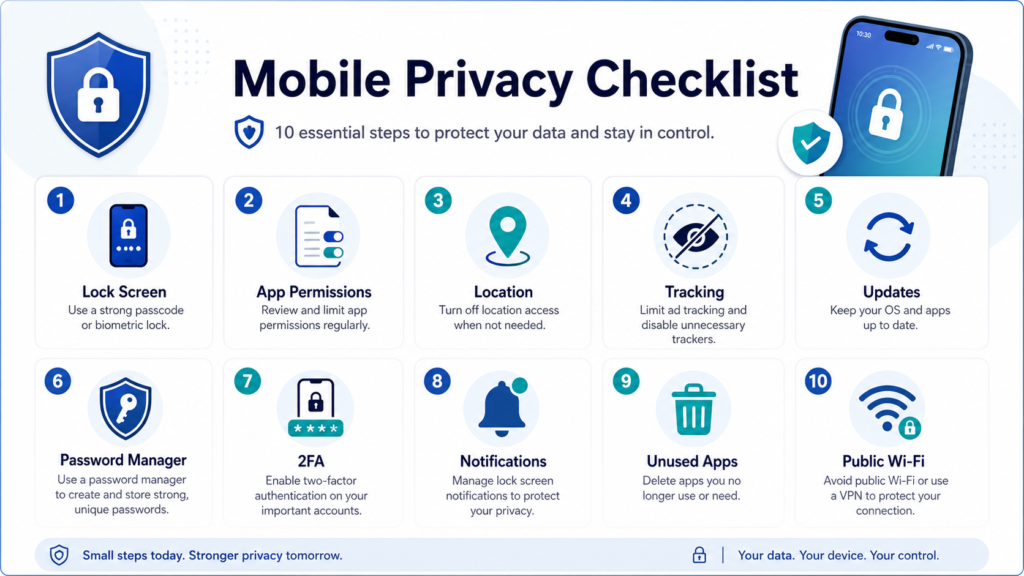
Mobile Privacy Checklist
Use this quick checklist:
- Set a 6-digit PIN or stronger
- Turn on face or fingerprint unlock
- Review app permissions
- Limit precise location access
- Disable unnecessary tracking
- Turn on automatic updates
- Use a password manager
- Enable 2FA on key accounts
- Hide lock screen previews
- Delete unused apps
- Avoid sensitive tasks on public Wi-Fi
- Review cloud backups
You can complete the first 5 steps in about 20 minutes.
FAQ
How can I make my phone more private quickly?
Start with your lock screen, app permissions, location settings, app tracking, and notification previews. These five changes usually take 15–20 minutes and reduce several common privacy risks.
Should I allow apps to track me?
Only allow tracking if you understand why the app needs it and you are comfortable with the data use. For most people, turning off unnecessary app tracking is a smart privacy step.
Is iPhone or Android better for privacy?
Both iPhone and Android offer useful privacy controls. The better option depends on how you configure settings, update software, manage app permissions, and protect your accounts.
Do I need a VPN on my phone?
You may benefit from a VPN if you often use public Wi-Fi or want extra protection on untrusted networks. A VPN does not protect against weak passwords, phishing, unsafe apps, or poor privacy settings.
What phone apps should I delete for privacy?
Delete apps you no longer use, apps from unknown developers, old games, unused shopping apps, and apps with unnecessary permissions. Review anything that accesses location, contacts, camera, microphone, or photos.
Conclusion
Making your phone more private does not require extreme settings or expensive tools. Most improvements come from simple habits: lock your phone properly, limit app permissions, reduce tracking, update software, secure accounts, and remove unused apps.
Start with the basics before paying for extra tools. A strong PIN, fewer permissions, hidden notifications, 2FA, and careful Wi-Fi habits can make your phone much safer.
CTA: Spend 20 minutes today reviewing your lock screen, permissions, location access, tracking settings, and unused apps. Small privacy changes can protect a large amount of personal data.