
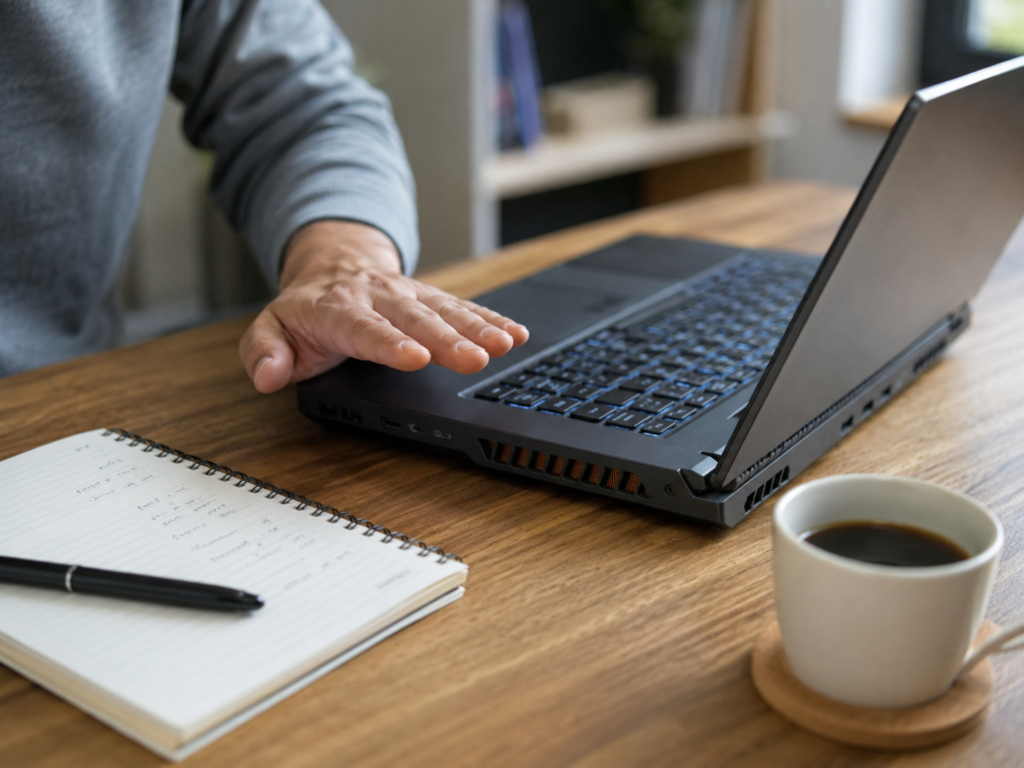
An HP laptop overheating can be annoying, worrying, and sometimes expensive if you ignore it for too long. The fan gets loud, the keyboard feels hot, apps slow down, and the laptop may even shut itself off without warning.
The good news is that many overheating problems are fixable at home.
To stop an HP laptop from overheating, place it on a hard flat surface, clean the air vents, close heavy background apps, check fan noise, update Windows and HP drivers, adjust power settings, and avoid using it in hot or dusty areas. If it still overheats after those steps, the fan, thermal paste, or internal cooling system may need professional repair.
This guide walks you through the process step by step, starting with the safest fixes first.
Why Is My HP Laptop Overheating?
An HP laptop overheats when it cannot remove internal heat fast enough. This usually happens because airflow is blocked, dust has built up inside the vents, the fan is working too hard, or the processor is under heavy load.
Common causes include:
- Using the laptop on a bed, blanket, sofa, or lap
- Dust blocking the vents
- Too many apps running in the background
- Browser tabs using too much memory
- Gaming, video editing, or streaming for long periods
- Outdated BIOS or drivers
- A failing fan
- Old thermal paste inside the laptop
Think of your laptop like a small room with a heater inside. If the windows are blocked and the fan cannot move air out, the room gets hotter and hotter.
The same thing happens inside your laptop.
Signs Your HP Laptop Is Getting Too Hot
Some warmth is normal, especially during updates, gaming, video calls, or charging. But overheating usually has clear warning signs.
Your HP laptop may be overheating if:
- The fan is loud almost all the time
- The bottom of the laptop feels very hot
- Performance suddenly drops
- Apps freeze or lag
- The laptop shuts down without warning
- You see fan-related startup errors
- The keyboard area becomes uncomfortable to touch
- Battery life drops faster than usual
Practical example
If your laptop only gets warm during a 30-minute video call, that may be normal.
But if the fan screams while you are only reading emails or browsing one website, something is probably wrong. That is when you should start troubleshooting.
Step 1: Move the Laptop to a Hard, Flat Surface
Start with the simplest fix: check where the laptop is sitting.
Many HP laptops pull cool air from the bottom or sides. If you place the laptop on a bed, pillow, blanket, carpet, or your lap, the vents can become blocked.
That traps heat inside.
What to do
Use your laptop on:
- A desk
- A table
- A laptop stand
- A hard tray
- A clean flat surface
Avoid using it directly on:
- Bedding
- Sofas
- Cushions
- Thick clothing
- Carpet
- Your lap for long sessions
Real-world scenario
You are watching videos in bed and the laptop fan suddenly becomes loud. The laptop itself may not be broken. The blanket is probably blocking the airflow.
Move it to a desk or a hard tray for 10–15 minutes and see if the fan becomes quieter.
Step 2: Clean the Air Vents Safely
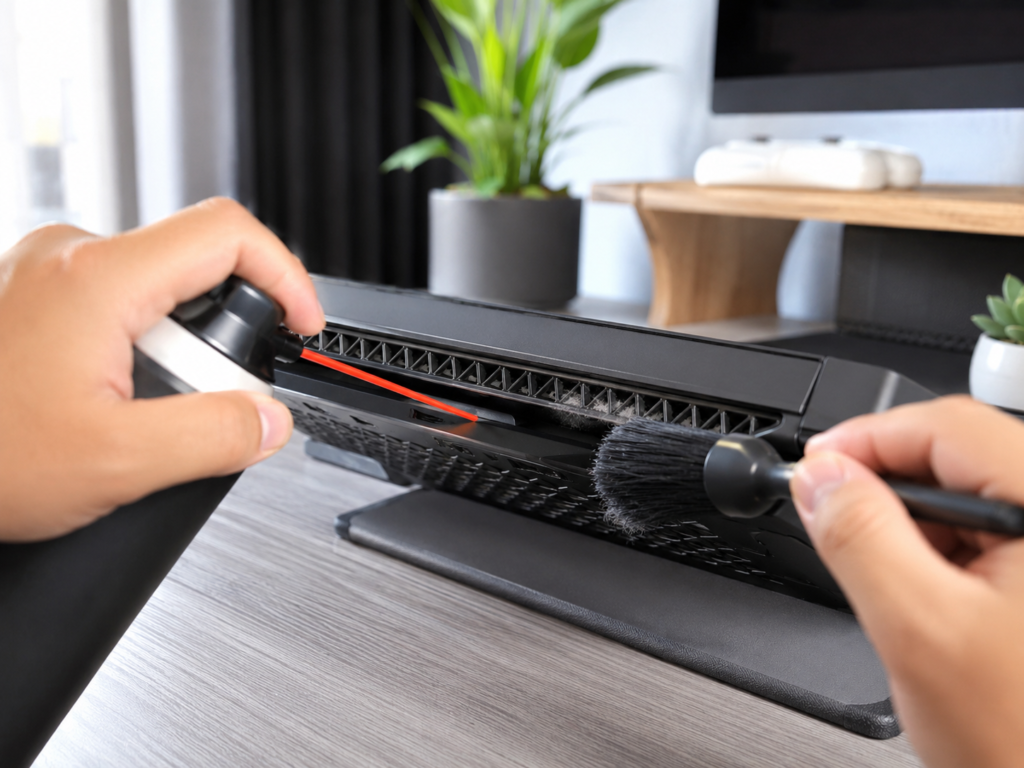
Dust is one of the biggest causes of laptop overheating. Over time, dust collects around the vents and fans, reducing airflow.
You do not always need to open the laptop to improve this. A careful external clean can help.
What you need
Basic cleaning tools usually cost around:
- Compressed air: $5–$15
- Soft brush: $3–$10
- Microfibre cloth: $3–$12
How to clean the vents
- Shut down the laptop fully.
- Unplug the charger.
- Let the laptop cool for 10–15 minutes.
- Find the vents on the bottom and sides.
- Use short bursts of compressed air.
- Brush away loose dust gently.
- Wipe the outer case with a dry microfibre cloth.
Do not spray liquid into the vents. Do not use a vacuum directly on the laptop vents. Do not force sharp objects inside the fan area.
If the laptop is still overheating after cleaning the outside, dust may be deeper inside the fan assembly.
Step 3: Close Heavy Apps and Browser Tabs
Sometimes the cooling system is fine, but the laptop is being pushed too hard.
Modern browsers can use a surprising amount of memory and processor power, especially with many tabs open. Video streaming, online meetings, cloud syncing, antivirus scans, and game launchers can also increase heat.
What to do
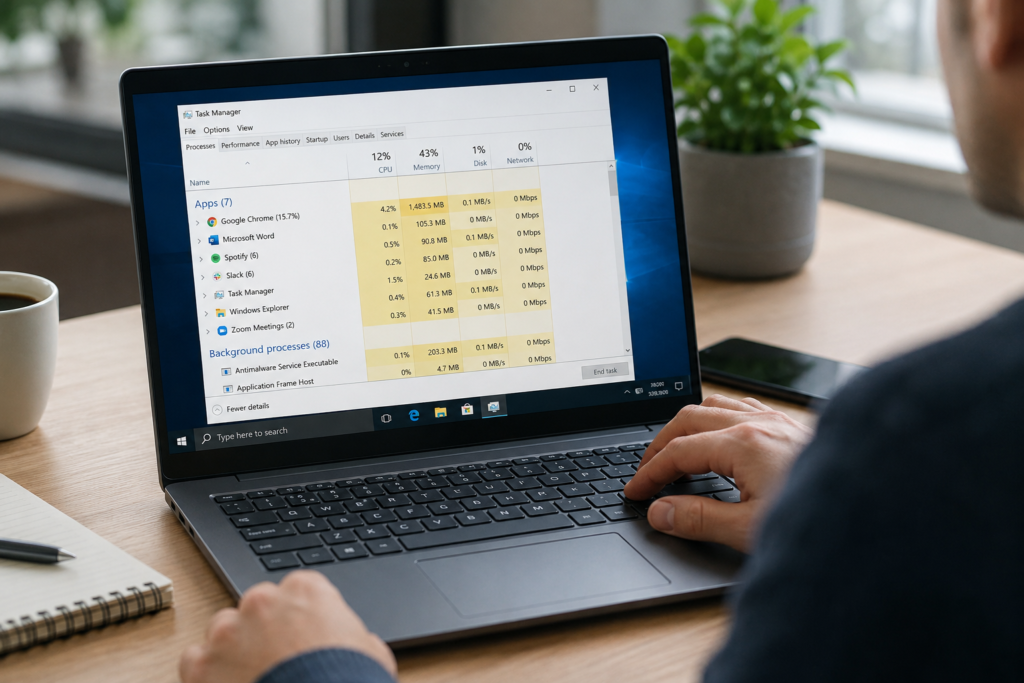
Open Task Manager:
- Press Ctrl + Shift + Esc
- Click Processes
- Sort by CPU or Memory
- Close apps using high resources if you do not need them
Practical example
If your HP laptop is overheating while you have 30 browser tabs open, two video streams paused, WhatsApp Desktop, OneDrive syncing, and a game launcher running, the laptop is not “randomly hot”.
It is doing too much at once.
Close what you are not using and wait 5–10 minutes. If temperatures drop and the fan calms down, the problem was software load.
Step 4: Disable Unnecessary Startup Apps
Startup apps are programs that open automatically when Windows starts. Some are useful. Others quietly run in the background and make your laptop work harder from the moment you turn it on.
That extra background load can increase heat and fan noise.
How to disable startup apps
- Press Ctrl + Shift + Esc
- Open Task Manager
- Select Startup apps
- Right-click apps you do not need
- Choose Disable
Do not disable security software unless you know exactly what you are doing.
Good candidates to disable may include unused game launchers, chat apps, cloud tools you rarely use, or brand apps that do not need to start every time.
Step 5: Change Power Mode in Windows
Power settings affect how hard your laptop works.
If your HP laptop is set to maximum performance all the time, it may run hotter than necessary. A balanced or efficiency-focused setting can reduce heat during normal work.
How to change power mode
- Open Settings
- Go to System
- Select Power & battery
- Find Power mode
- Choose a balanced or efficiency option for normal use
Use higher performance mode only when needed, such as for editing, gaming, or heavy work.
Simple example
If you are writing documents, browsing, or watching videos, you probably do not need maximum performance. Lowering the power mode may reduce fan noise and heat without making the laptop feel slow.
Step 6: Update Windows, HP Drivers, and BIOS
Outdated drivers or BIOS can sometimes cause fan behaviour, power management, or performance issues.
HP laptops often use model-specific updates, so it is important to install the correct updates for your exact laptop model.
Safe update checklist
- Run Windows Update
- Use HP Support Assistant if available
- Check HP’s official support page for your model
- Install recommended chipset, graphics, and BIOS updates carefully
- Keep the laptop plugged in during BIOS updates
- Do not interrupt a BIOS update once it starts
A BIOS update can be useful, but it must be done carefully. Installing the wrong BIOS or interrupting the update can cause serious problems.
If you are unsure, use HP Support Assistant or get help from someone experienced.
Step 7: Check the Fan Noise
Fan noise can tell you a lot.
A fan that speeds up during heavy work is normal. A fan that grinds, clicks, rattles, or never spins properly may indicate a hardware problem.
What different fan sounds may mean
- Smooth loud fan: laptop is working hard or running hot
- Grinding sound: possible worn fan bearing
- Clicking or rattling: possible dust, obstruction, or fan damage
- No fan sound with overheating: fan may not be working
- Fan error at startup: cooling system needs attention
If your laptop is under warranty, check warranty options before opening it or taking it to a third-party repair shop.
Step 8: Use a Cooling Pad or Laptop Stand
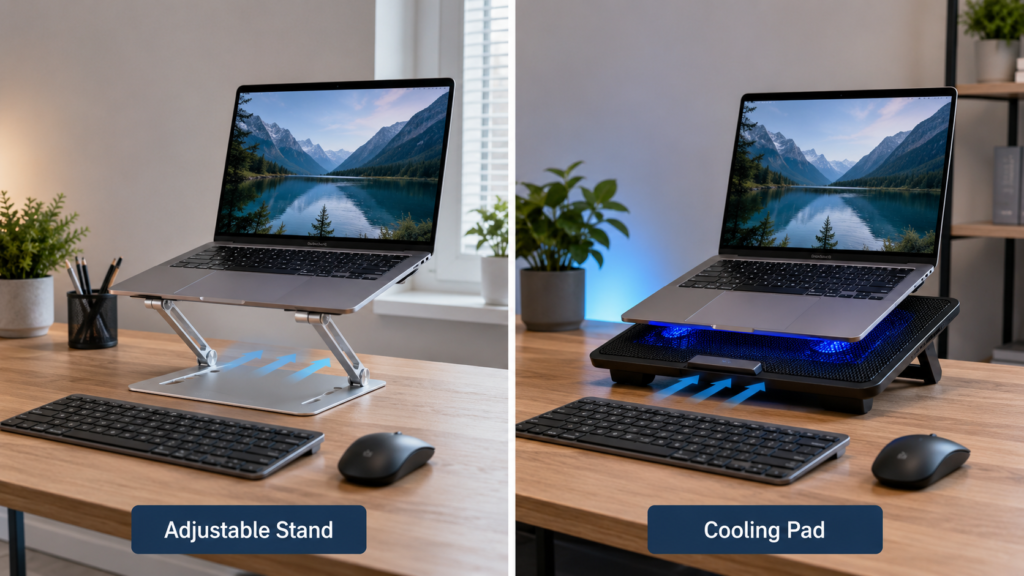
A laptop stand improves airflow by lifting the laptop from the desk. A cooling pad adds extra fans underneath.
These are not magic fixes, but they can help if your laptop runs warm during long sessions.
Typical cost
- Basic laptop stand: $10–$25
- Adjustable metal stand: $20–$50
- Cooling pad with fans: $20–$60
A stand is usually enough for office work and browsing. A cooling pad may help more during gaming, video editing, or long streaming sessions.
Practical example
If your HP laptop runs hot during 2–3 hour work sessions, lifting it on a stand can improve airflow and reduce desk heat. If you use heavy apps daily, a cooling pad may be worth considering.
Step 9: Check for Malware or Suspicious Processes
Malware can make a laptop overheat by forcing the processor to work in the background.
This is less common than dust or blocked vents, but it is worth checking if your laptop suddenly becomes hot without an obvious reason.
Warning signs
- Fan runs loudly while idle
- Unknown processes use high CPU
- Browser opens strange pages
- Battery drains unusually fast
- Laptop slows down after installing unknown software
Run a full scan using Windows Security or trusted antivirus software. Avoid random “PC cleaner” tools that promise miracle fixes. Some of them create more problems than they solve.
Step 10: Know When It Needs Repair
If you have tried the basic fixes and your HP laptop still overheats, the problem may be inside the machine.
Possible repair issues include:
- Failing fan
- Blocked internal heatsink
- Dried thermal paste
- Damaged heat pipe
- Battery swelling
- Motherboard or sensor fault
Professional cleaning or thermal paste replacement may cost around $50–$150, depending on the model and local repair prices. Fan replacement may cost more if parts are difficult to source.
If the laptop is old and repair costs approach 40–50% of the price of a replacement laptop, compare both options carefully before spending money.
Helpful Tools and Resources
Use reputable tools and support platforms when troubleshooting overheating. Avoid unknown driver websites and fake “speed booster” apps.
- Global: HP Support Assistant (official HP updates and diagnostics)
- Global: Windows Security (built-in malware and health checks)
- United States: Best Buy Geek Squad (in-person repair and diagnostics)
- United States: Micro Center Knowledge Bar (hardware repair support)
- UK & Europe: Currys Laptop Repair (accessible UK repair support)
- UK & Europe: iFixit Europe (repair guides and quality toolkits)
Only use repair services you trust, especially if your laptop contains personal files, work documents, or saved passwords.
FAQ
Why does my HP laptop overheat so quickly?
Your HP laptop may overheat quickly because the vents are blocked, dust has built up, too many apps are running, the fan is struggling, or the laptop is being used on a soft surface that traps heat.
Is it safe to use an HP laptop while it is overheating?
It is better to stop and let it cool down. Continued overheating can cause shutdowns, performance problems, battery stress, and possible hardware damage over time.
Can I clean my HP laptop fan without opening it?
You can clean the external vents with compressed air and a soft brush. If dust is deep inside the fan or heatsink, professional internal cleaning may be needed.
Why is my HP laptop fan so loud?
The fan gets loud when the laptop is trying to remove heat. This can happen during heavy tasks, blocked airflow, dust build-up, high power settings, or background apps using too much CPU.
Will a cooling pad stop my HP laptop overheating?
A cooling pad can help improve airflow, especially during long sessions, but it will not fix serious dust build-up, a failing fan, or old thermal paste. Treat it as support, not a complete repair.
Conclusion
An overheating HP laptop does not always mean the laptop is dying. In many cases, the cause is simple: blocked vents, dust, heavy apps, poor airflow, or aggressive power settings.
Start with the safest fixes first. Move the laptop to a hard flat surface, clean the vents, close heavy apps, disable unnecessary startup programs, adjust power mode, and update HP drivers and BIOS carefully.
If the laptop still overheats after those steps, it may need professional cleaning or repair.
The key is not to ignore the warning signs. A cooler laptop runs quieter, performs better, and has a better chance of lasting longer.