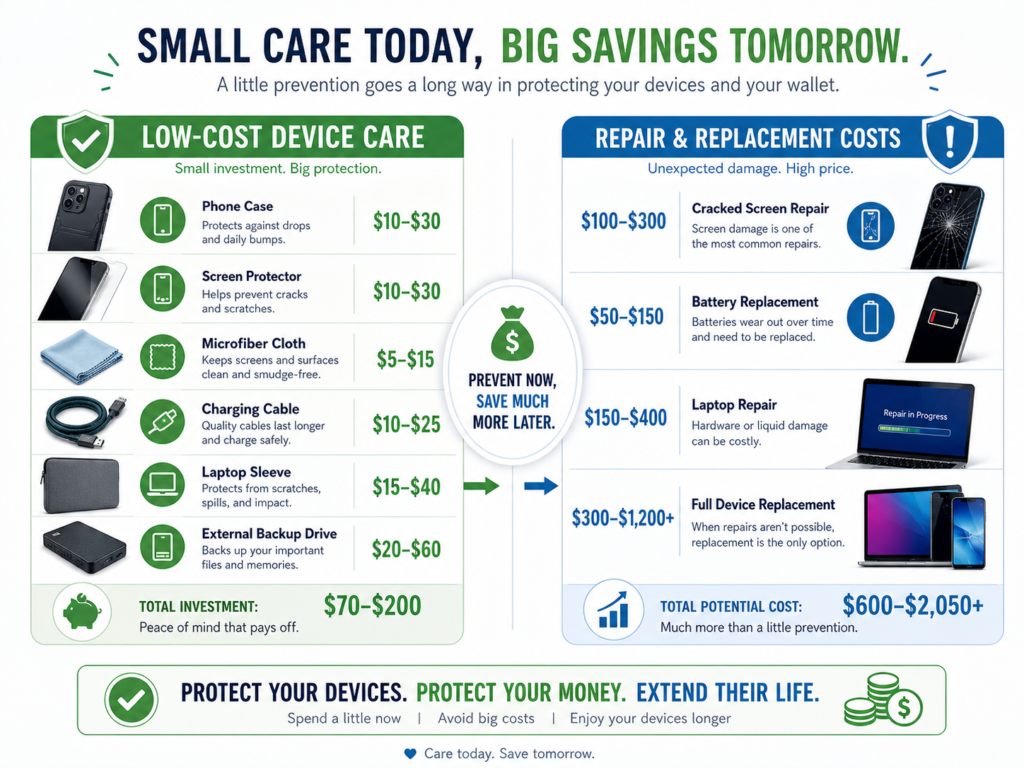

Replacing phones, laptops, tablets, and smartwatches too often can quietly drain your budget. A new device can cost anywhere from $300–$1,500, while many repairs cost $80–$400.
The good news is simple: you can extend the lifespan of your devices with better charging habits, cleaning routines, storage management, software updates, and basic protection. These small habits can help your tech run smoothly for years longer.
What Does It Mean to Extend the Lifespan of Your Devices?
To extend the lifespan of your devices means keeping your phone, laptop, tablet, or accessories working well for as long as possible.
This includes protecting:
- Battery health
- Storage space
- Screen and body condition
- Software performance
- Internal components
Simple example:
If a laptop normally lasts 3 years but good maintenance helps it last 5 years, you could delay a $700–$1,200 replacement and save serious money.
Why Device Maintenance Saves Money
Device care is not just about performance. It is also a money-saving habit.
A poorly maintained phone may slow down, overheat, lose battery capacity, or need repairs earlier. Good tech maintenance helps you reduce replacement costs, avoid unnecessary repairs, and get better resale value when you eventually upgrade.
Practical scenario:
Replacing a cracked phone screen may cost $100–$300, while a protective case and screen protector may cost $20–$60. That is a simple prevention-first saving.
10 Ways to Extend the Lifespan of Your Devices
1. Protect Battery Health
Batteries are usually one of the first parts to weaken. Once battery health drops, your device may feel slower, drain faster, or need charging several times a day.
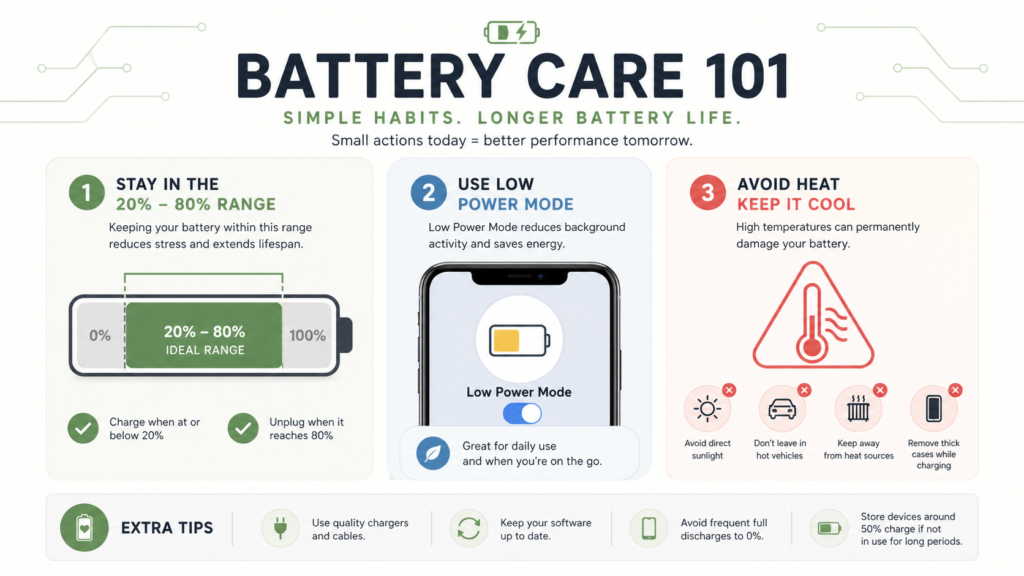
For laptops, Microsoft recommends keeping the battery between 20% and 80% several times a week where possible, and using smart charging if your device supports it. Apple also advises avoiding hot environments and storing iPhones around half charged for long-term storage. (Microsoft Support)
Simple steps:
- Avoid leaving devices in direct sunlight
- Use optimised charging features
- Avoid constant 0% to 100% charging cycles
- Keep phones and laptops cool while charging
Example:
Turning on Optimised Battery Charging on iPhone or Smart Charging on Windows laptops can reduce battery wear and delay a $80–$250 battery replacement.
2. Keep Software Updated
Software updates are not only about new features. They often include security fixes, performance improvements, and battery optimisation.
Apple recommends keeping devices updated to maximise performance, and Microsoft notes that power-efficient Windows settings can help extend battery life by reducing unnecessary energy use. (Apple)
How to do it:
- Enable automatic updates
- Update apps monthly
- Restart your device after major updates
- Remove unsupported apps
Example:
A phone running outdated apps may crash more often, use more battery, and become vulnerable to security issues.
3. Use Battery Saver and Power Settings
Battery saver features reduce background activity, screen brightness, syncing, and unnecessary power usage.
On Windows, Battery Saver temporarily turns off high-power features like background syncing and live updates, making it one of the easiest ways to extend battery life. Google also recommends Android battery-saving tools such as Adaptive Battery to reduce background drain. (Microsoft Support)
Practical setup:
- Turn on Battery Saver at 20–30%
- Use Adaptive Battery on Android
- Use Low Power Mode on iPhone
- Reduce screen brightness by 10–30%
Scenario:
If your laptop battery normally lasts 5 hours, better power settings may add 30–90 minutes of use and reduce charging frequency.
4. Clean Your Devices Properly
Dust, crumbs, and dirt can damage ports, keyboards, fans, and charging connections.
A laptop with blocked vents may overheat. A phone charging port full of dust may charge slowly or stop charging completely. Cleaning prevents small issues from becoming expensive repairs.
Safe cleaning checklist:
- Use a microfibre cloth
- Use compressed air for keyboards and vents
- Avoid spraying liquid directly on screens
- Clean charging ports gently
Example:
Cleaning laptop vents every 1–2 months can reduce overheating and protect internal parts from long-term damage.
5. Manage Storage Before It Gets Full
Devices slow down when storage becomes too full. Phones and laptops need free space to run updates, save temporary files, and keep apps working smoothly.
Aim for:
- At least 10–20% free storage
- Monthly photo and video cleanup
- Cloud backup for large files
- Remove unused apps every 30–60 days
Example:
If your phone has 128GB storage, try to keep 13–25GB free. This helps performance and reduces crashes.
6. Use Protective Cases and Screen Protectors
Physical damage is one of the easiest problems to prevent.
A protective case, screen protector, and laptop sleeve can prevent cracks, scratches, dents, and water exposure. These accessories usually cost much less than repairs.
Smart protection setup:
- Phone case: $15–$50
- Screen protector: $10–$30
- Laptop sleeve: $20–$60
- Cable organiser: $5–$20
Scenario:
Spending $40–$80 on protection could prevent a $150–$400 repair.
7. Avoid Heat, Moisture, and Dust
Heat is one of the biggest enemies of device lifespan. It damages batteries, reduces performance, and can shorten the life of internal components.
Apple warns that charging or using devices in temperatures above 35°C / 95°F can permanently reduce battery lifespan. (Apple Support)
Avoid:
- Leaving phones in hot cars
- Charging devices under pillows
- Using laptops on soft beds
- Keeping devices near radiators
- Using electronics in steamy bathrooms
Better habit:
Use laptops on hard surfaces and keep phones away from direct sunlight while charging.
8. Replace Accessories Before They Damage Your Device
Cheap or damaged accessories can harm your device.
A frayed cable, weak charger, or loose adapter can cause charging issues, overheating, or port damage. Replacing accessories early is cheaper than repairing the device itself.
Check every 1–2 months:
- Charging cables
- Power adapters
- Laptop chargers
- USB hubs
- Headphone ports
Example:
Replacing a damaged cable for $10–$25 is better than repairing a phone charging port for $80–$200.
9. Back Up Your Data Regularly
Device lifespan is not only about hardware. Your files matter too.
A device can fail unexpectedly, even if you maintain it well. Regular backups protect photos, documents, passwords, and work files from permanent loss.
Simple backup rule:
- Cloud backup for everyday files
- External drive backup every month
- Password manager backup for logins
- Automatic photo backup enabled
Example:
Use Google Drive, iCloud, OneDrive, or Dropbox for daily file syncing. Add an external drive backup every 30 days for extra protection.
10. Repair Early Instead of Waiting
Small problems often become bigger if ignored.
A noisy laptop fan, weak battery, loose hinge, or cracked screen may get worse over time. Early repair can extend the device’s life and prevent more expensive damage.
Repair early if you notice:
- Overheating
- Swollen battery
- Slow charging
- Unusual fan noise
- Random shutdowns
- Screen flickering
Scenario:
Replacing a laptop fan early may cost $80–$150, while overheating damage to the motherboard could cost $300–$700.
Best Tools and Platforms for Device Care
Global
- iFixit — repair guides and toolkits
- Google Drive — simple file backup
- Dropbox — automatic cloud syncing
United States
- Best Buy Geek Squad — repairs and device support
- Asurion — device protection plans
United Kingdom / Europe
- Currys Tech Support — UK device support and repairs
- Back Market — refurbished devices and trade-ins
Advanced Users
- CrystalDiskInfo — check drive health
- HWMonitor — monitor temperature and hardware performance
Common Device Care Mistakes to Avoid
Many people damage devices without realising it.
Avoid these habits:
- Charging devices in hot places
- Ignoring software updates
- Letting storage stay above 90% full
- Using damaged cables
- Never cleaning vents or ports
- Waiting too long to repair small issues
Better approach:
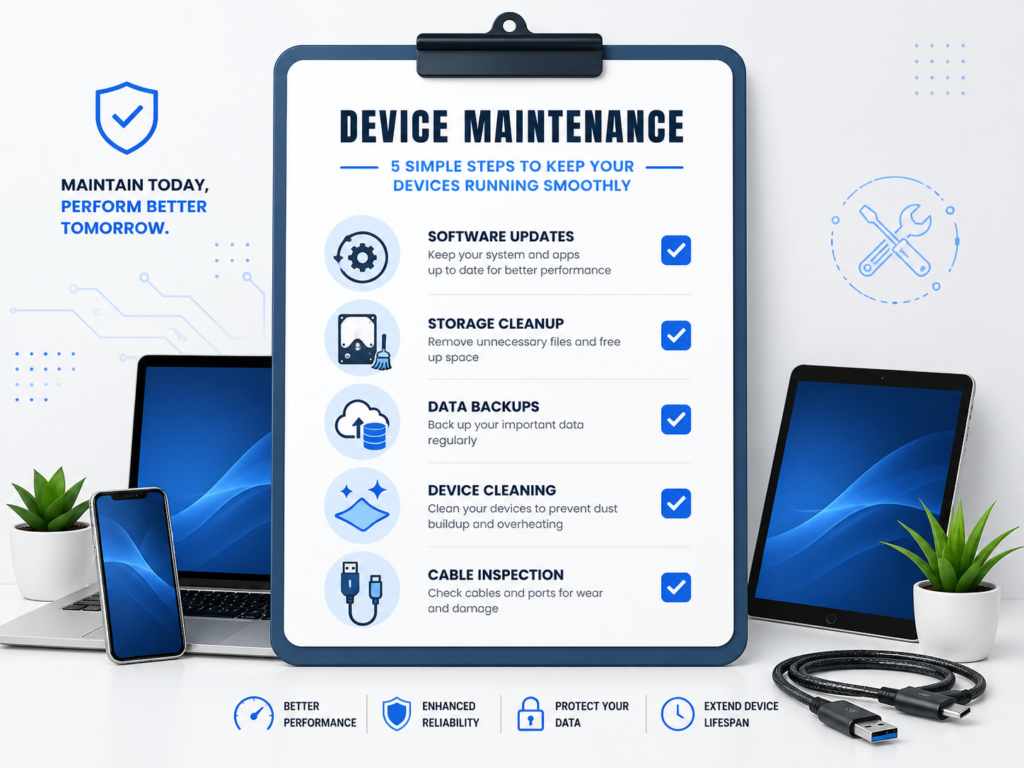
Set a monthly 15-minute device maintenance routine. Clean your device, delete unused files, check updates, inspect cables, and back up important data.
FAQ
How can I extend the lifespan of my phone?
Protect the battery, avoid heat, keep software updated, use a strong case, clean the charging port, and maintain at least 10–20% free storage. These habits can help your phone last 1–2 years longer.
How long should a laptop last with good care?
A well-maintained laptop can last 4–6 years, depending on build quality, battery condition, usage, and repairs. Cleaning vents, managing storage, and protecting battery health can significantly improve lifespan.
Is it bad to leave devices charging overnight?
Modern devices manage charging better than older ones, but heat and staying at 100% for long periods can still affect battery ageing. Use optimised charging features where available and avoid charging in hot environments.
What is the cheapest way to protect devices?
The cheapest protection is a good case, screen protector, proper charging habits, and regular backups. A $30–$80 prevention setup can help avoid repairs costing $100–$400.
Should I repair or replace an old device?
Repair if the cost is below 30–50% of the replacement price and the device still performs well. Replace if repairs are expensive, software support has ended, or the battery and performance are both poor.
Conclusion
Extending the lifespan of your devices is one of the easiest ways to save money without changing your lifestyle.
By protecting batteries, keeping software updated, cleaning devices, managing storage, backing up data, and repairing problems early, you can delay expensive upgrades and avoid unnecessary repairs.
Start today with one simple step: clean your device, check your storage, and turn on battery-saving features.