
What Is a Password Manager?
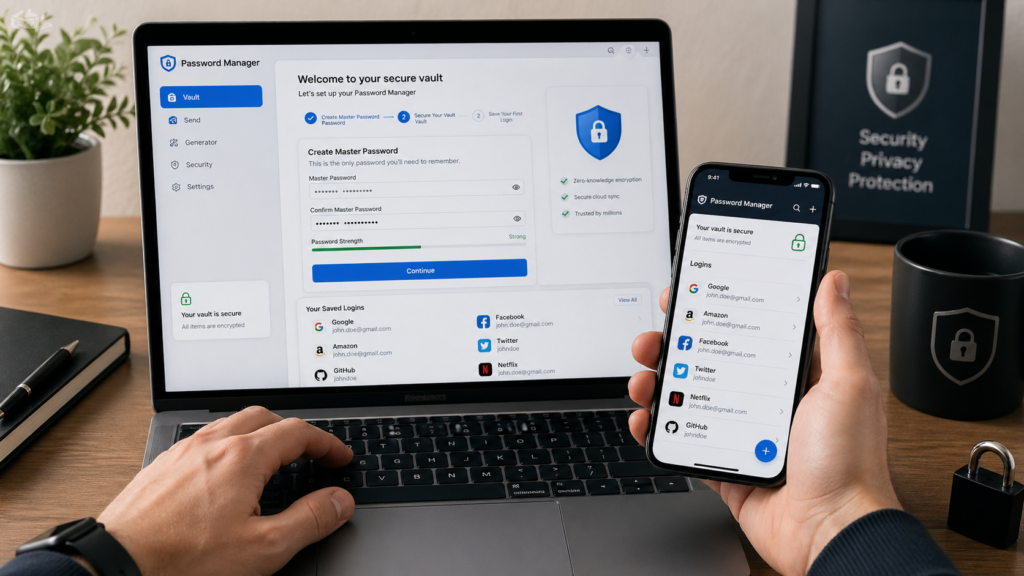
A password manager is an app that securely stores your usernames, passwords, passkeys, payment details, secure notes, and other private login information.
The UK National Cyber Security Centre says password managers help you use unique passwords for each service because you do not need to remember them all yourself. Many also include password generation and autofill features. (National Cyber Security Centre)
In simple terms, it works like a locked digital vault.
You unlock the vault with one strong master password, then the password manager helps you log in to websites and apps safely. Examples include Bitwarden, 1Password, Dashlane, Keeper, NordPass, and Proton Pass.
Why You Should Use a Password Manager
Most people do not get hacked because they are targeted by expert hackers. They get hacked because they reuse weak passwords across multiple accounts.
For example, imagine you use the same password for your email, shopping account, and streaming service. If one site suffers a data breach, attackers may try that same password on your email or bank account.
A password manager helps prevent this by allowing you to:
- Create long, random passwords
- Use a different password for every account
- Store passwords securely
- Autofill logins safely
- Spot weak or reused passwords
- Share passwords securely with family or team members
A strong password manager setup can save you hours of account recovery time and reduce the risk of losing access to important accounts.
How to Choose the Right Password Manager
Before setting one up, choose a password manager that fits your needs. Do not only pick the cheapest option. Look for security, ease of use, device support, and recovery options.
Key features to look for
A good password manager should include:
- End-to-end encryption
- Password generator
- Browser extension
- Mobile app
- Autofill
- Two-factor authentication support
- Password health check
- Secure sharing
- Data breach alerts
- Passkey support
Bitwarden, for example, supports passwords and passkeys across browsers and devices, while 1Password includes Watchtower security alerts and passkey features. Dashlane offers passkeys and dark web monitoring tools. (Bitwarden)
Free vs paid password managers
Free plans can be enough for basic personal use. Paid plans usually add family sharing, emergency access, encrypted file storage, advanced monitoring, and priority support.
A realistic price range for premium password managers is usually around $1–$8 per month, depending on whether you choose an individual or family plan. For many people, that is cheaper than recovering from one hacked email, payment account, or business login.
Recommended Password Manager Tools by Region
Global
- Bitwarden — strong free plan and open-source reputation
- 1Password — polished design and excellent family features
- Dashlane — strong monitoring and password health tools
United States
- Keeper — strong business and family security options
- NordPass — simple interface and secure password storage
- Proton Pass — privacy-focused ecosystem with email aliases
United Kingdom / Europe
- Bitwarden — affordable option with wide device support
- 1Password — useful for families and frequent travellers
- Proton Pass — strong privacy focus for European users
Advanced users
- KeePassXC — offline password vault for technical users
- Bitwarden self-hosting — more control for experienced users
- 1Password Business — team controls and admin features
For most beginners, Bitwarden, 1Password, or Dashlane will be easier than advanced offline tools.
How to Set Up a Password Manager Step by Step
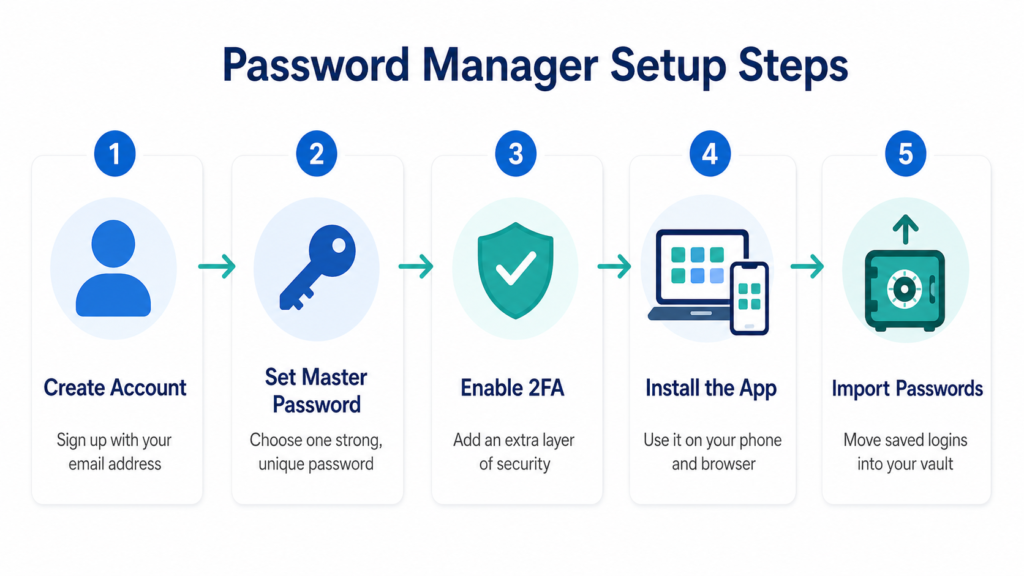
Setting up a password manager does not need to be complicated. The smart approach is to start with your most important accounts first, then improve everything over time.
Step 1: Create your account
Go to your chosen password manager and create an account using your main email address.
Use an email account that you check regularly because password managers may send recovery notices, security alerts, or device approval emails.
For example, if you use Gmail for banking, shopping, and work accounts, you may use that same Gmail address to register with Bitwarden or 1Password.
Step 2: Create a strong master password
Your master password is the key to your entire vault, so make it long and memorable.
A good master password should be:
- At least 14–18 characters
- Unique to your password manager
- Easy for you to remember
- Hard for others to guess
- Not reused anywhere else
A simple method is to use a passphrase, such as four or five unrelated words with numbers or symbols added.
Do not use your name, birthday, favourite football team, pet name, or anything visible on social media.
Step 3: Enable two-factor authentication
Two-factor authentication, often called 2FA, adds a second layer of protection. Even if someone learns your master password, they still need another verification method.
Good 2FA options include:
- Authenticator apps such as Google Authenticator, Microsoft Authenticator, or Authy
- Hardware security keys such as YubiKey
- Built-in passkeys where supported
Avoid SMS codes when better options are available, because phone numbers can be vulnerable to SIM-swap attacks.
Step 4: Install the browser extension and mobile app
Install your password manager on the devices you actually use.
For most people, that means:
- Browser extension for Chrome, Safari, Firefox, or Edge
- Mobile app for iPhone or Android
- Desktop app for Windows or macOS
This makes it easier to save new logins and autofill passwords securely.
For example, if you create a new account on Amazon, PayPal, or Canva, your password manager can offer to generate and save a strong password instantly.
Step 5: Import existing passwords carefully
Many browsers, such as Chrome, Safari, Firefox, and Edge, allow you to export saved passwords. Most password managers let you import them.
After importing, check for:
- Weak passwords
- Duplicate passwords
- Old accounts you no longer use
- Passwords saved for websites you do not recognise
Do not rush this step. If your password manager finds 80 saved logins, start by cleaning your most important 10–20 accounts first.
Step 6: Change weak and reused passwords
This is where the real security improvement happens.
Start with your highest-risk accounts:
- Email account
- Online banking
- Payment apps
- Shopping accounts
- Cloud storage
- Social media
- Work accounts
Generate a unique password for each one. Aim for 16–24 characters where possible.
For example, your email password should not be the same as your Netflix, eBay, or Facebook password. Your email is especially important because it can be used to reset many other accounts.
Step 7: Turn on security alerts
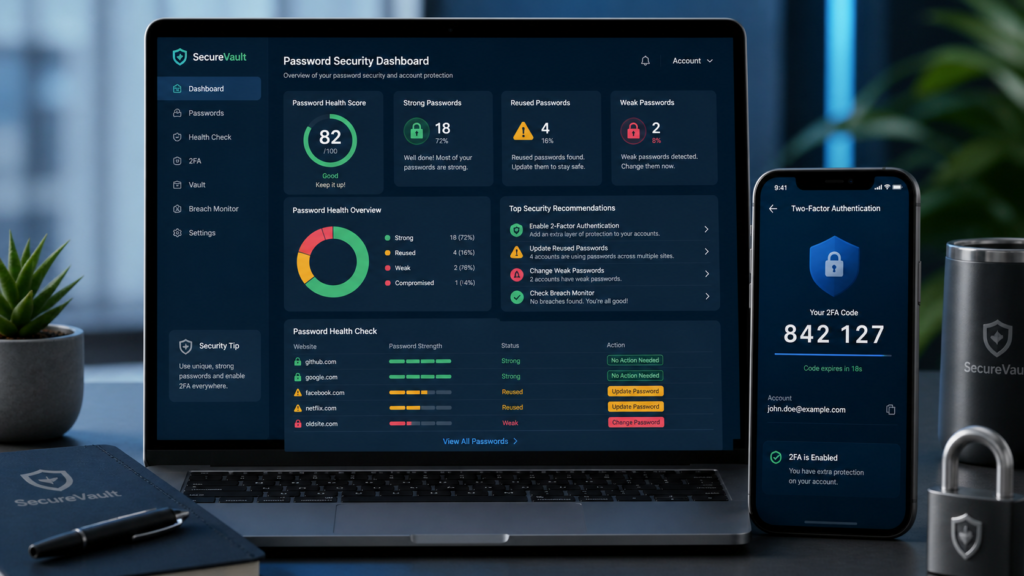
Many password managers include a password health report or breach monitoring feature.
These tools can warn you about:
- Reused passwords
- Weak passwords
- Compromised passwords
- Unsecured websites
- Old accounts that need updating
Dashlane, for example, includes dark web monitoring alerts that can warn users when exposed login information appears in breach data. (Dashlane)
Check your password health report once a month for the first 3 months, then every 2–3 months after that.
Password Manager Safety Tips
A password manager is powerful, but you still need to use it properly.
Do not share your master password
Never send your master password by email, text, WhatsApp, or direct message.
If you need to share a login with a family member or colleague, use the password manager’s secure sharing feature instead.
For example, 1Password and Bitwarden allow secure sharing through vaults or collections, depending on your plan.
Lock your devices
Your password manager is safer when your devices are protected.
Use:
- Device PIN
- Fingerprint login
- Face recognition
- Screen lock after 1–5 minutes
- Full device encryption where available
If someone can open your laptop or phone without permission, your online accounts are at greater risk.
Keep a recovery plan
Some password managers offer recovery codes, emergency access, or family recovery options.
Store recovery information somewhere safe, such as:
- A printed copy in a locked drawer
- A home safe
- A secure document vault
Do not keep recovery codes in plain text on your desktop, camera roll, or email inbox.
What About Passkeys?
Passkeys are a newer login method that can replace traditional passwords on supported websites and apps.
Instead of typing a password, you sign in using your device, fingerprint, face recognition, or PIN. The private key stays on your device, making passkeys harder to phish than normal passwords.
Bitwarden, 1Password, and Dashlane all support passkey-related features, helping users store or manage passkeys across websites and devices. (Bitwarden)
For beginners, the smart approach is simple: use strong passwords now, enable 2FA, and start using passkeys when trusted websites offer them.
Common Mistakes to Avoid
Avoid these password manager mistakes:
- Using a weak master password
- Forgetting to enable 2FA
- Saving passwords but never changing reused ones
- Keeping passwords in browser and password manager forever
- Sharing passwords by text or email
- Ignoring security alerts
- Using the same password for email and banking
A password manager is not just storage. It is a system for improving your online safety step by step.
FAQ
What is the best password manager for beginners?
Bitwarden, 1Password, and Dashlane are strong beginner-friendly options. Bitwarden is good for value, 1Password is easy for families, and Dashlane is useful if you want built-in monitoring features.
Is it safe to store all passwords in one password manager?
Yes, if you use a trusted password manager, a strong master password, and two-factor authentication. The main risk is poor setup, such as using a weak master password or not protecting your devices.
Should I use my browser’s password manager?
Browser password managers are convenient, but dedicated password managers usually offer stronger cross-device features, sharing options, security reports, and advanced tools. They are better if you use multiple browsers, devices, or operating systems.
How often should I change my passwords?
Change passwords immediately if they are weak, reused, or exposed in a breach. Otherwise, focus on using long, unique passwords rather than changing strong passwords too often without a reason.
Can a password manager stop phishing?
A password manager can reduce phishing risk because it usually autofills only on the correct website. However, you should still check web addresses carefully and avoid clicking suspicious links.
Conclusion
Setting up a password manager the smart way is one of the simplest upgrades you can make to your online safety.
Start with a trusted tool, create a strong master password, enable two-factor authentication, and update your most important accounts first. Then use password health checks, secure sharing, and passkeys to improve your setup over time.
You do not need to fix every account in one day. Secure your email, banking, payment, and cloud storage accounts first, then work through the rest in small batches.
CTA: Choose one password manager today, set it up on your main device, and update your first 10 important passwords this week.