
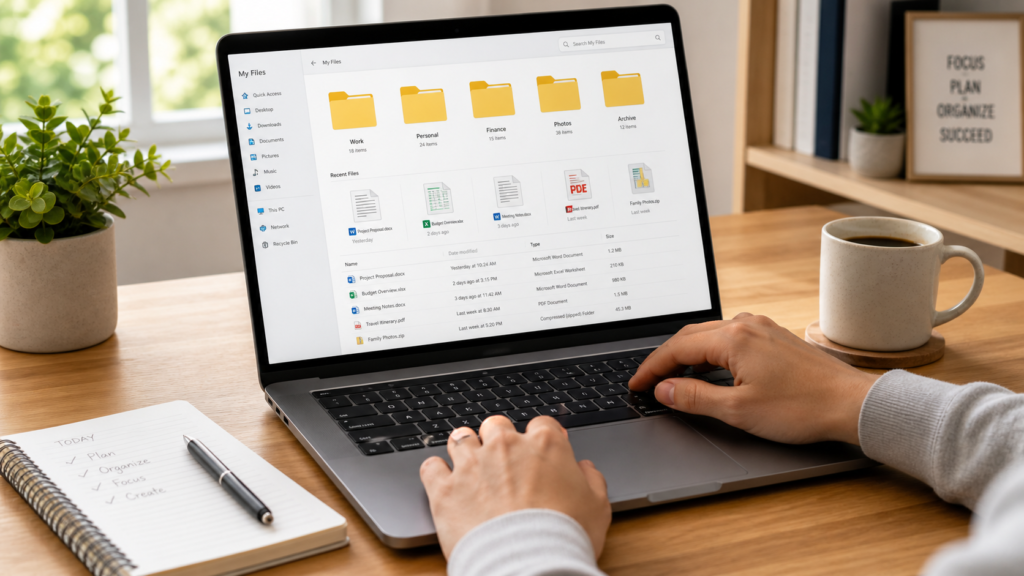
Digital clutter builds quietly. One day your desktop is clean, then suddenly you have screenshots, downloads, invoices, photos, work documents, old CVs, and random files named “final-final-version2.pdf”.
Learning how to organise digital files does not mean creating a perfect system. It means building a simple structure that helps you find what you need in seconds, avoid duplicates, and stop feeling overwhelmed by your laptop, phone, or cloud storage.
The best system is easy to understand, easy to maintain, and realistic enough to use every week.
What Is Digital File Organisation?
Digital file organisation is the process of arranging your files, folders, documents, photos, downloads, and backups in a clear system so they are easy to find, update, archive, or delete.
A good digital organisation system usually includes:
- Clear main folders
- Consistent file names
- A simple cloud storage setup
- Regular backups
- A weekly clean-up routine
- An archive folder for older files
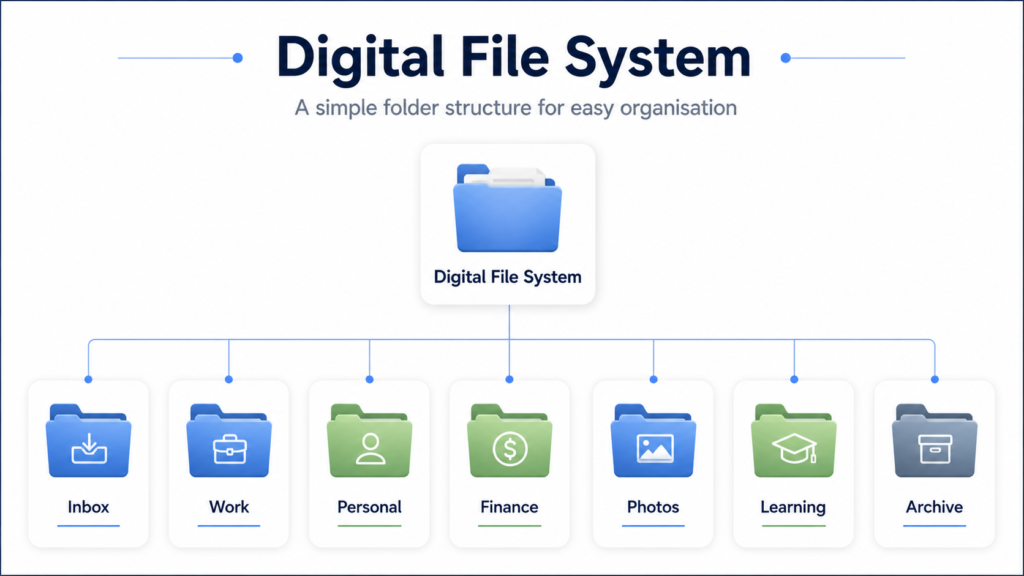
For example, instead of keeping 300 files on your desktop, you might use folders such as Work, Personal, Finance, Photos, Learning, and Archive.
Why Digital Files Feel Overwhelming
Digital files feel overwhelming because they do not take up visible physical space. You can ignore them for months until you urgently need one document and cannot remember where it is.
Common causes include:
- Too many files in Downloads
- Duplicate documents across devices
- Unclear names such as “document1”
- Photos mixed with work files
- Old projects kept beside current ones
- No backup or cloud sync plan
- Too many storage apps at once
A realistic example: if you save just 10 random files per week, that becomes 520 files per year. Without a system, even a small weekly mess becomes difficult to manage.
How to Organise Digital Files Without Feeling Overwhelmed
Start with structure, not perfection. Do not try to organise every file in one day. Set up a simple system first, then move files in batches.
Use this 5-step process:
- Create 5–7 main folders
- Use simple subfolders
- Rename important files clearly
- Archive old files
- Review your system weekly
This approach works because it gives every file a “home” without forcing you to sort thousands of files immediately.
Step 1: Create a Simple Main Folder System
Your main folders should match your life, not someone else’s productivity system.
Start with these:
- Inbox
- Work
- Personal
- Finance
- Photos
- Learning
- Archive
The Inbox folder is important. It acts as a temporary holding place for files you have not sorted yet. Instead of letting your desktop become messy, move unsorted files into Inbox and review them later.
Example:
A downloaded bank statement goes into Inbox first. During your weekly review, move it to Finance > Bank Statements > 2026.
Step 2: Use Subfolders Only Where Needed
Too many folders can create more confusion. Keep your subfolders simple and predictable.
A good rule is: create a subfolder only when you have 10–20 files in one category.
Example folder structure:
Finance
- Bank Statements
- Tax Documents
- Receipts
- Insurance
- Budget Templates
Work
- Current Projects
- Meeting Notes
- Reports
- CV and Career
- Archive
Photos
- 2026
- Family
- Travel
- Screenshots
- To Edit
Google Drive recommends using folders to make files easier to find and share, but also notes there is no single correct way to organise files. That is useful to remember: the best system is the one you can use consistently. (Google Support)
Step 3: Use Clear File Names
File names should tell you what the file is before you open it.
Avoid names like:
- Document.pdf
- Screenshot 2026
- Final version
- New file
- Scan001
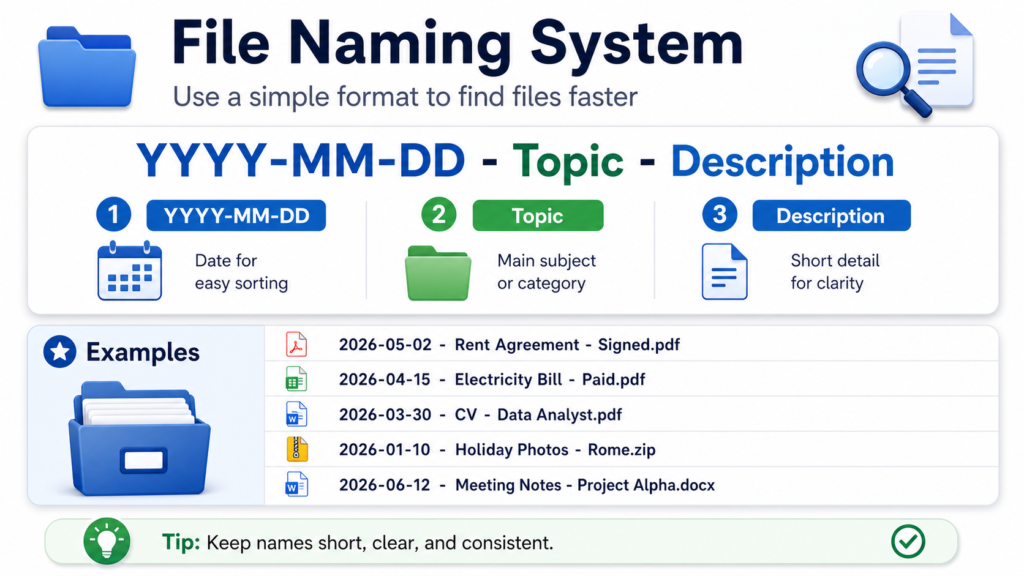
Use this simple format instead:
YYYY-MM-DD – Topic – Description
Examples:
- 2026-05-02 – Rent Agreement – Signed.pdf
- 2026-04-15 – Electricity Bill – Paid.pdf
- 2026-03-30 – CV – Data Analyst.pdf
- 2026-01-10 – Holiday Photos – Rome.zip
Dates help files sort naturally. Descriptions help search tools find them faster.
For photos, you do not need to rename every image. Rename folders instead, such as 2026-08 – Spain Trip or 2026-12 – Family Dinner.
Step 4: Clean Your Downloads Folder First
The Downloads folder is usually the biggest source of digital mess.
Spend 15–30 minutes clearing it before organising anything else. Sort files into four actions:
- Move: important files into the right folder
- Rename: unclear files you will need again
- Delete: duplicates, installers, temporary PDFs
- Archive: old but possibly useful files
Practical scenario:
You open Downloads and find 120 files. Do not sort all of them perfectly. Delete obvious junk first, then move only the top 20–30 important files. Put the rest into Archive > Downloads Cleanup if needed.
Progress is better than perfection.
Step 5: Choose One Cloud Storage System
Cloud storage helps you access files across devices and reduces the risk of losing important documents if your laptop breaks.
Popular options include Google Drive, Dropbox, Microsoft OneDrive, and iCloud Drive.
Google Drive supports organising Google Docs, Sheets, Slides, Microsoft Office files, PDFs, and many other file types in one place. (Google Workspace) OneDrive Files On-Demand lets users access cloud files without downloading everything and using local storage space. (Microsoft Support) Apple says iCloud Drive files and folders can be accessed across iPhone, iPad, Mac, Windows, and iCloud.com when set up properly. (Apple Support) Dropbox offers cloud storage, file sharing, file transfer, backup, and document tools. (Dropbox)
The key is to choose one primary system. Using Google Drive, Dropbox, OneDrive, and iCloud equally can create confusion.
Recommended Digital File Tools by Region
Global
- Google Drive — easy sharing and strong search tools
- Dropbox — simple syncing and file sharing
- Microsoft OneDrive — strong Windows and Office integration
United States
- Google Workspace — useful for work and collaboration
- Dropbox — strong sharing for freelancers and teams
- Notion — helpful for notes and file links
United Kingdom / Europe
- Microsoft OneDrive — common in workplaces and universities
- Google Drive — useful for personal and shared folders
- Proton Drive — privacy-focused cloud storage option
Advanced users
- Syncthing — private device-to-device file syncing
- Obsidian — local notes with linked knowledge files
- Backblaze — automatic computer backup
Step 6: Separate Storage From Backup
Cloud storage and backup are not always the same thing.
Cloud storage helps you sync and access files. Backup protects you if files are deleted, corrupted, or lost.
A simple beginner setup:
- Use Google Drive, OneDrive, Dropbox, or iCloud Drive for active files
- Use an external hard drive or backup service for safety
- Keep important files in at least 2 locations
For example, your tax documents could be stored in Google Drive > Finance > Tax Documents and also backed up to an external drive once per month.
For very important files, use the 3-2-1 backup idea:
- 3 copies of important files
- 2 different storage types
- 1 copy away from your main device
Step 7: Create an Archive Folder
Not every old file needs to be deleted. Some files are not useful today but may be needed later.
That is where the Archive folder helps.
Use subfolders like:
- Archive > Old Work
- Archive > Old Finance
- Archive > Old Photos
- Archive > Completed Projects
- Archive > Old Downloads
Example:
A project from 2023 does not need to sit beside your current work. Move it to Archive > Completed Projects > 2023. You keep it, but it no longer clutters your daily workspace.
Step 8: Use Search Smarter
A good folder system helps, but search is still powerful.
Use search terms based on:
- Date
- Client or project name
- File type
- Keyword
- Folder name
Examples:
- invoice 2026 PDF
- CV data analyst
- holiday Rome 2026
- tax receipt March
- presentation final
Google Drive, OneDrive, Dropbox, iCloud Drive, Windows Search, and macOS Spotlight can all help locate files faster when your file names are clear.
Step 9: Organise Your Desktop
Your desktop should not be your long-term storage area. Treat it like a physical desk: useful while working, clear when finished.
Use this simple rule:
- Maximum 5–10 active items on your desktop
- Move everything else into folders
- Review the desktop once per week
Create a folder called Desktop Inbox if needed. This gives temporary files a place to go without turning your screen into a mess.
Example:
If you are applying for jobs, keep only your active CV, cover letter, and job tracker on the desktop. Move older versions into Work > CV and Career > Archive.
Step 10: Do a Weekly 20-Minute Digital Reset
The best organisation system fails without maintenance.
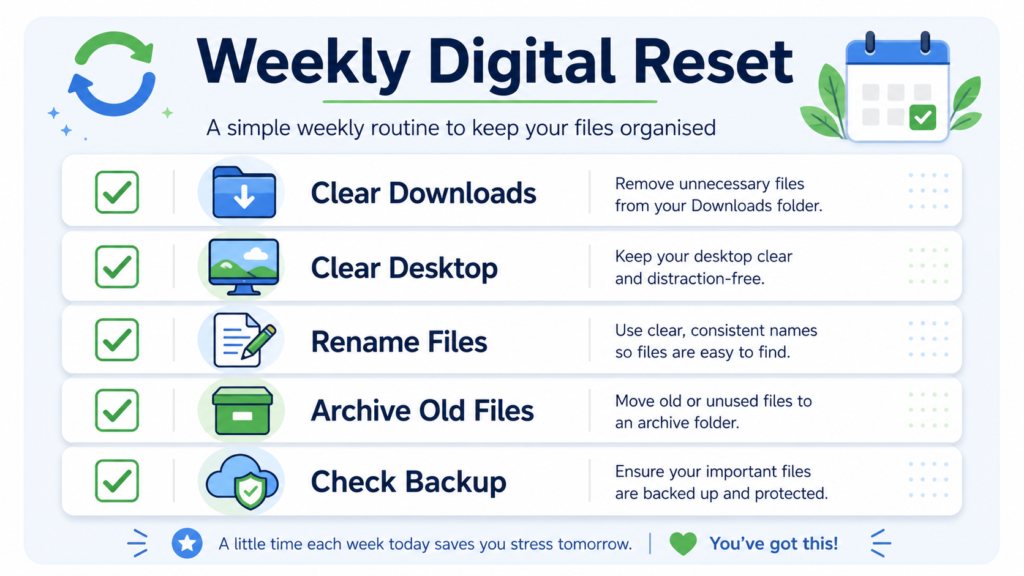
Set a weekly reminder for 20 minutes. During that time:
- Clear Downloads
- Clear Desktop
- Rename important files
- Move files from Inbox
- Delete obvious duplicates
- Check cloud sync
- Back up critical documents
This is enough for most people. If you handle a lot of files for work or content creation, increase it to 30–45 minutes weekly.
The goal is not a perfect digital life. The goal is fewer lost files, faster searching, and less stress.
Common Digital Organisation Mistakes
Avoid these mistakes:
- Creating too many folders
- Saving everything to the desktop
- Using unclear file names
- Keeping duplicates forever
- Using too many cloud apps
- Never checking backups
- Trying to organise years of files in one day
A better approach is to start with your current files first. Organise what you use now, then deal with older files later.
FAQ
What is the best way to organise digital files?
The best way is to use 5–7 main folders, clear file names, one cloud storage system, and a weekly review. Start with folders such as Work, Personal, Finance, Photos, Learning, Inbox, and Archive.
How do I organise thousands of files?
Do not organise everything at once. Start with current files, then sort older files in batches of 100–300 files. Delete obvious junk, archive old material, and rename only the files you are likely to search for again.
Should I use folders or search to find files?
Use both. Folders give your files structure, while search helps you find them quickly. Clear file names make search much more effective.
How often should I clean my digital files?
A weekly 20-minute reset is enough for most people. Clear Downloads, Desktop, and Inbox first. Then move important files, delete junk, and check your cloud sync or backup.
What should I keep on my desktop?
Keep only active files you are using this week. Aim for 5–10 desktop items maximum. Move finished files into folders and old files into Archive.
Conclusion
Organising your digital files does not have to be stressful. You only need a simple system: a few main folders, clear file names, one cloud storage tool, one backup plan, and a weekly reset.
Start with your Downloads folder, create an Inbox folder, organise your most important files first, and archive old material instead of letting it clutter your daily workspace.
Within 30 days, a weekly 20-minute reset can turn digital clutter into a system that feels calm, searchable, and easy to maintain.
CTA: Create your 7 main folders today, clear your Downloads folder for 20 minutes, and set a weekly reminder to keep your digital files organised.